It’s been awhile since I’ve posted so I remember something, but a faculty member asked how I did this:
It looks like it’s just a link in the menu that says “* Message Lisa”, but it’s so much more. You’ll notice to the left, in the system-wide blue menu, is the Inbox. This is what students are told to use to message their instructor. But when you go there, you have to search for the instructor, by course and by name, before you get a window where you can type your message. That’s stupid. It should be easy to contact your instructor.
But my “* Message Lisa” link doesn’t just go to the Inbox. It opens a window immediately where they can type their message, with all the fields (their course, their name) filled in already. No searching required.
For that link, it’s tricky. Each course in Canvas has its own link to the instructor’s inbox. The format is this:
To find the course number, you can go to any assignment inside your class and look at the URL, or you can mouse over the class tile in the Dashboard. To find your user number, mouse over anywhere your name is linked in the class (like at the top of an Announcement). To find your user name, see your Profile.
Then I use the Redirect App in the Settings – Apps, and create it as a link, just changing the course number for each course. It rolls over each term, so I just have to change the course number each time.
It is an axiom frequently ignored that any technology has to have a reason to exist in a class. The textbook is a technology. If one were to actually read it, that would be a huge investment of time in an era where attention is continually diverted. A chosen technology is either central to learning or it shouldn’t be there at all.
Students, understandably, won’t read the textbook without stakes (a quiz, a paper). Increasingly, many students cannot sustain the attention and access the vocabulary skills required to read one.
As a result, publishers and professors have developed ways to force students to read the textbook. Publisher’s courses read the book aloud to the student, provide embedded quizzes and pop-up vocabulary as they go, and assess performance before pushing the grades into the Learning Management System. Annotation systems like Perusall make it possible for students to annotate a textbook together. These approaches are far too much if we only want the textbook as background.
I confess that I’ve edited several textbooks of my own that I use in my classes. These are classes where I have substantial lecture material, so the book is context. For the first two years of the pandemic, I made reading them optional and eliminated book quizzes, but now that students are more accustomed to online learning, I’m bringing them back, with some regret.
my new OER textbook
This regret is coloring my view as I design two “new” World History classes (I’ve only taught them in the classroom and that was many years ago). For the first, I’ve spend the last several months with the Cengage textbook I’ve chosen, and made it central to the short recorded lectures. In these lectures I explain the chapter, note its strengths and weaknesses, clarify points. The lecture itself is quizzed internally, using the quiz function in Canvas Studio. Class starts in a little over a week. I hope it works, but either way I’ve made the book central to the class.
Now I think about the other half of the course. For this one, world history to 1500, I have found an Open Educational Resource, a free textbook. Of course, it’s only free in its electronic form. So I’m thinking how to use it, since it must be central. I have no lectures prepared for the class, and am not sure I want them.
So, a new idea. Since it’s free and electronic, I could put it inside Perusall, the social annotation program. But instead of expecting students to annotate, or requiring that they do it (as I do with primary sources), perhaps I’ll put in the annotations little videos of me, glossing the text myself that way. Perhaps I’ll ask questions, invite participation, and grade it in Perusall.
In the old days we turned up our noses at “teaching from the textbook”, ridiculing those who tied their lectures to it. Perhaps we felt that we could leave students alone with the textbook, and they’d read and understand it. I doubt this was ever true, but in a world where we can chose to eschew the textbook entirely, create ungrading schemes, and have at our fingertips more resources to share than ever before, we should consider the textbook differently.
During the pandemic year many faculty have been forced to create fully online classes in a Learning Management System, such as Canvas or Blackboard. It has been surprisingly difficult. Even those fluent in technologies like email and social media have been flummoxed by the difficulties of using the LMS as an online classroom. There are three main reasons why.
Got folders?
Learning Management Systems appear to be innocent shells into which teachers load “content”, but in reality they each have their own built-in pedagogy. This pedagogy is often archaic and is based on outdated norms of information organization. In the 1990s, LMSs imitated the folder-style structure of Mac and PC (Windows) operating systems. They were really just places to upload content items (usually Word files) and perhaps run a single discussion board (by 2005 or so).
Surprisingly, even when LMSs added more and more features to enable greater interaction and activity, they retained the old structure. It is designed to present material by type: Pages, Lectures, Discussion, Grades, etc. You can see this in the way the menu is constructed.
Presentation by type undermines the organizational integrity of the course. Most scholars think in terms of their field, and how best to present its habits of mind. As teachers, we think next in terms of wrapping elements together to encourage understanding. We do not think in terms of all the articles, all the lectures, all the exams, all the discussions.
Instead, we think in terms of weeks, or units, or modules. We section the learning, combining various elements to cover a particular subject. Separating those resources by type makes no sense when one is creating a pattern of learning.
One solution is to break this framework. If the LMS allows us to add, delete, or hide menu items,we can make new pages which link to the whole pattern of information. It may be possible, for example, to have the menu say Module 1, Module 2, etc., instead of Announcements, Syllabus, Pages, Discussion, Quizzes.
Even so, the system may force its own design. We may have a Module 1 page with all the links to activities, but when the student clicks on that activities, the breadcrumbs may show the folder name (“Quizzes”). Students can get lost following these.
Student-led what?
None of the major LMSs make it easy to implement constructivist or connectivist learning theory. Unlike twenty years ago, instructors may have studied and be trained in active learning teachniques, and have been using them in the classroom. When faced with the LMS, they find themselves stymied.
Created student-led or student-designed work is difficult. LMSs require teacher permissions to set up an assignment, quiz, content area, or discussion. Although some discussion forums allow students to begin topics, this feature must also be set by the instructor.
Some systems seems to be more adaptable, or at least expandable. In LMSs like Canvas, LTI’s (tools using the Learning Tools Interoperability standard) can be added to the system with varying levels of success. An example might be an improved discussion board, or Google Docs, or a group annotation app. Some integrate fairly well into the LMS, making them easy to access from inside the shell and pushing grades back into the system. But all require a bit of technical expertise to set up, and the integration is rarely seamless. Some, like Google Docs, may require students to have a separate Google account, while others need their own structural folder inside the LMS for all activity related to that app. This is particularly true of textbook publishers’ material, which often tries to integrate the publisher’s own textbook site with the LMS.
The solutions here take one of three directions: the internal approach, the LTI approach, or the textbook publisher approach.
Since students can be given control of discussion boards, the internal approach would include using them for different kinds of activity other than discussion: posting lists of websites, sharing resources, posting quotations from reading. The other folder areas (quizzes, pages, etc) can simply not be used.
The LTI approach would involve using more collaborative tools, like Google Docs or group annotation apps or pinboards as the main outside tool, with the instructor learning it well and monitoring it thoroughly.
The textbook publisher approach would be to ignore or hide everything possible in the LMS navigation and use the publisher’s folder as the main work area.
Fifteen papers due today!
Gone are the days when your class was the only online class students were taking. They are now enrolled in many classes within the same LMS at the same institution. In an effort to help them remember the deadlines for everything, the LMS aggregates all the information from all the courses into task lists, using a Calendar or To Do feature.
For example, a conditional release feature makes it possible to prevent a student performing Task B (a test) before they have done Task A (an assignment). Task A is designed to prepare the student for Task B, and ideally would be done within a short period of concentration. But on the student’s Calendar they see Task A, then Task 1 from another class, then Task iii from yet another class, before Task B. By the time they get to Task B, they have no idea what was learned in Task A. An example from three of may classes, running at the same time:
Same day, three different classes
Perhaps you have designed a module to lead students through an introduction, then a short lecture, then a video, then a discussion, then a test. All of these will be disaggregated by due date and will appear in a jumble on the students’ Calendar. Wrapping elements for your class together to encourage deeper understanding becomes impossible.
In addition, by listing all the tasks from all the classes together, the Calendar or List “flattens” all the assignments. It becomes impossible to tell which tasks are more or less important to the student, to learning, or to the grade. They all look equivalent in the same font and size, even if one is a two-minute video and the other is a paper that would take several days.
Unfortunately, this problem may not be solvable. Few LMSs allow control over whether or not to show calendars and lists to students. Because permissions for such features run above the individual course level, instructors usually have no access to any methods that would change the LMS behavior.
The bottom line
Creative pedagogy can work within the limitations of the LMS, but it is not easy to implement. Systems are designed to systematize, and the LMS is designed to create cookie-cutter classes based on outmoded structures rather than to promote innovative approaches. Thus for many of us, understanding its design is essential to adapting, subverting, or acquiescing to its suckiness.
Instructure’s Canvas continues to gain market share as the Learning Management System in colleges and universities, despite limitations which have become more apparent as more faculty teach online. Want to assign extra credit? That’s really hard. Want students to maintain individual graded journals? Super difficult. Want to use the shell to create student-led learning? Forget about it.
And yet schools have been overjoyed to adopt Canvas as the new friend who will help with everything while not having too many needs. It’s so easy to use, everyone says. It looks so simple and clean and Google-y. Students like how all their classes look the same, reducing their cognitive load.
But for the more creative teacher or professor, those interacting with it intensely rather than casually, associating with Canvas exposes its shortcomings and begins to cause frustration. Faculty who have had more useful relationships with other systems know exactly what’s missing, but even those new to the playground are stymied when trying to get a simple friendly response.
The fact is, Canvas is not our friend. That’s because its design forces us to engage with its emotional problems.
Navigating like it’s 2005
Canvas is stuck in old patterns of thinking, even when those patterns cause problems again and again.
Learning Management Systems appear to be innocent shells into which teachers load “content”, but in reality they each have their own built-in pedagogy. Canvas’s pedagogy (like its other market leader, Blackboard) is based on outdated norms of information organization. In the 1990s, LMSs imitated the folder-style structure of Mac and PC (Windows) operating systems. They were really just places to upload content items (usually Word files) and perhaps run a single discussion board (by 2005 or so).
Surprisingly, even when LMSs added more and more features to enable greater interaction and activity, they retained the old structure. It is designed to present material by type: Pages, Lectures, Discussion, Grades, etc. You can see this in the way the Canvas menu is constructed.
Most teachers do not think in terms of “type”. We think in terms of weeks, or units, or modules. We section the learning, combining various elements to cover a particular subject, assigning a reading, practice test, discussion, and exam all on the same topic. Separating those resources by type makes no sense when one is creating a learning pathway for students to follow, and can undermine the organizational integrity of the course.
Trying to help
But Canvas promises an alternative navigation for the students: Modules. You can put all your tasks in the correct order under headings. The “Back” and “Next” buttons, which automatically follow your sequence, will ensure that students stay within their lane.
Exciting Modules page for Chapter 4
Unfortunately, this doesn’t solve the problem. Canvas’s Modules page is a list of links, with every item listed in the same size and color. But the menu items, ever visible even on the Modules page, will still say Pages, Assignments, Discussion, etc.
One can try to break this framework. Since we can add, delete, or hide menu items, it is possible to make new pages which link to the whole pattern of information. It may be possible, for example, to have the menu say Module 1, Module 2, etc., instead of Announcements, Syllabus, Pages, Discussion, Quizzes.
You could use the Modules pages as a home page, even though it’s ugly. Or you could make all the menu items for types invisible, and build a Home page with a schedule or grid, and each unit could be a list of links. Students can then see how everything fits together for that week.
But no…
Both solutions will be undermined by Canvas’s internal navigation. Even if you set up Page-based or Modules navigation, the “breadcrumbs” will show everything by type anyway. Any student going from your Week 2 page of links to Quiz 2 will see a breadcrumb in the upper left saying “Quizzes”. It they click it, the full list of all the quizzes in the class appear. Ditto with Discussion 2 — the full list of discussions will be there, and students will start jumping around and get lost.
Canvas provides the way to make things right, then undermines its own good intentions.
Working in five classes at once
Canvas wants everything combined for convenience, ignoring all your plans.
Let’s say you create a learning pathway through the content, considering the holistic nature of your course, using Modules or Pages. The Calendar and the To Do list will immediately come along and destroy your careful course structure, by disaggregating all the tasks in all your students’ various classes and lumping them together into a giant list.
For students, as a convenience, the Calendar lists everything from all their classes in order of due date. When they look at the month’s or week’s tasks, everything from all their classes is listed, making it difficult to see the order of anything for one particular class. Your “Discussion 2” which you carefully designed to follow Reading 2 has another class’s “Discussion 4″ in between.
The To Do list does the same thing in an even simpler list that appears on the Dashboard and every course home page.
In addition, both the Calendar and the To Do list don’t include anything that isn’t graded. That might include the week’s main page, the discussion students are supposed to return to on two different dates, or a required reading. Students will miss ungraded assignments entirely as they innocently follow these helpful lists.
What to do?
Because the Calendar and To Do features are controlled above the course level, there is no way to make them invisible or change them, except by adding more items from your class. There is limited space in the title, especially when the Calendar or To-Do List is seen on a phone, so we cannot put “Eng101” as the first word to help. But we can add additional Calendar items for things that aren’t connected to a graded item: “Week 2 starts today”, or “Return to discussion”, or “essay corrections due”. When we make an ungraded assignments, we can check the “Add to To Do list” box. Adding more things to do may be, strangely, the best way to help students.
Relying on others for basic functions
Canvas has no inner reserves of strength, and relies on outsiders.
It is a truth generally acknowledged that Canvas’s discussion boards are the most troublesome element of the LMS. Conversation is not its strong suit. Canvas requires an administrative setting to do things like make the barely nested posts obvious in a threaded discussion. There is so much white space that one scrolls until one forgets the topic — it isn’t practical to engage in extended, much less semester-long, discussions. There is no distinction between instructor posts and student posts. The toolbar cannot be customized, so it has become bloated and even more difficult to use than when it had fewer features. There is no @ feature or notification sent to students to let them know someone has responded to their post, unless they subscribe to all posts on all boards in the class.
Canvas is very instructor-focused, making student-led learning difficult to design. There are no collaborative or whiteboard spaces built in. Extending Canvas means using LTI (Learning Tools Interoperability) apps, or what used to be called “plug-ins”. These are made by external providers, and vary widely in cost and ease of use. Some integrate better than others, passing grades back into the Canvas Gradebook with ease. Others force students to create external accounts.
Given these difficulties, it is often easiest for faculty to succumb to the temptation of using a big stick: the textbook publisher package. The big companies offer full packages that can plug in to a Canvas course, essentially connecting their own learning management system to Canvas. This adds another layer and another (sometimes more than one) menu item as a “type”. Then it becomes necessary to spend much time learning the publisher’s complicated system as well as Canvas.
Less may be more
The only solution here is to limit oneself to one LTI. If it’s the publisher package, all the time will be spent learning and dealing with that. If it’s Google Docs, that will have a learning curve too, and possibly external accounts. If group annotation is desired, that can be the only extension.
Being honest with each other
These three big flaws don’t even include the many inconsistencies and gaps that Canvas has had since the beginning. There is no way to change things in bulk, like assignment due dates or quiz instructions. There is no pop-up to alert students that a message awaits from their teacher. There is no font customization on the Modules page, which flattens everything and makes it look like a two-minute video is equivalent to a twenty-page chapter. The drag-and-drop Calendar won’t let you drag-and-drop items from one month to another.*
One should not expect a friend, especially a troublesome friend, to change. Until 2015 there was a chance the relationship would improve. Indeed, things had been improving with help from the Canvas Community, a rich resource of teachers and expert users. But once Instructure went public, they became answerable to shareholders, just like Blackboard. Their “open source” street cred died, as did their need to respond to users.
It may be be best to consider Canvas as a flawed, if necessary, companion. It has its own desires and needs, which will often be counter to yours. But its unreliability means it’s best not to get too dependent.
*Update: Kona Jones has pointed out to me a couple of revisions. One can drag-and-drop to a different month if you start with an undated item from the list, and a recent update now means that Canvas includes bulk editing of Assignment dates only.
So many instructors, some of whom have used Canvas as their LMS for their on-site classes, are now encountering the system’s complexities and limitations. Teaching fully online is different from posting ones class resources online, or at least it should be.
My advice has changed from three years ago, because Canvas itself has changed. My reasoning, however, has not changed from eleven years ago. My article on Insidious Pedagogy: How course management systems affect teaching (2009) explained how the designs of learning management system tend to control pedagogy, especially among novice users. We need to spend some time working against the system.
So I’ve reduced my top ten tips to three. And they may well be suitable for LMSs and VLEs other than Canvas.
1) Create full navigation using Pages
As with LMSs of old, Canvas continues to default to grouping content and assignments by type. This is a holdover from Blackboard, which relied on the early computer analogies of “files and folders” to imitate paper filing systems. So “Lectures” can be a folder, “Discussions”, “Quizzes”, etc.
But for most of us, learning is time-oriented, or theme-oriented, not type-oriented. We tend to have units with multiple types of content and activities. Many of these are organized by unit or week. There is no way to express this to students without making a page of links.
Canvas, of course, has a Modules page with a list of links. On the Modules page, you can load in everything, and have students do things in sequence, or with prerequisites, or both. The Modules page is, and has always been, ugly. The most you can do is add emojis to the headings, if you know how. And every item listed on the Modules page is the same size and color, creating the impression that everything listed has the same worth. All you can do is indent, or use caps.
The best Canvas classes I’ve seen have a schedule or grid on the main page:
Each of the links goes to a Canvas page, which has links of the activities and content:
One can of course put all these in the Modules page also, which will enable the “Back” and “Next” buttons for those into sequences and control. Then it’s up to you whether to show that Modules page, because you also ought to. . .
2) Hide menu items
This has not changed from earlier advice: features we are not using, or that we don’t want students accessing from the menu, should not appear on the menu.
For Canvas, this involves going to Settings – Navigation and dragging the items you don’t want visible down to the inactive area. It used to be that when you did this and saved, neither you nor the students saw these items on the menu, and the look was clean. Recently, Canvas changed this so that the instructor sees them all, but with the hidden items indicated by a crossed-out eye.
Well, at least students don’t see them.
3) Do low-stakes stuff anyway
Here working against Canvas means working with it. Students need reasons to work on your class, and to get immediate feedback. This is difficult in Canvas. Doing extra credit, creating short quizzes, using test question banks, all are ridiculously complicated. And there is still no easy way to just copy a quiz.
Canvas will also passively prevent what you want to do. Want to create a discussion forum where everyone who posts twice gets 3 points? Can’t do it. Want to have 20 questions on a 10-point quiz, so each question is worth half a point? No can do. Want to rename an assignment and have all the internal links still work? Good luck. Want to change all 28 due dates to a week later? It’s a one-at-a-time job. (At least there’s a hack for this one.)
It pays to spend some time seeing what can be done with zero-point assignments, and complete/incomplete grades, and the default grade feature in the Gradebook. Students learn from short, formative assessments.
Working against the LMS has always been required for us to teach the way we want to. More and more, I see LMS trainings covering these problems, and teaching the workarounds, which is great. Particularly when your LMS is owned by an equity firm, after going public and answering to shareholders, we can be sure that improvement is unlikely (most Canvas problems have been around since its inception). We must be willing to work against the system.
I remember this exercise from grade school. We were given a list of terms, and told to use them in a paragraph. Not define them, but use them.
If I’d done the reading, this could go several ways. If I’d understood the overall point of what I had read, the first sentence of the paragraph was easy, and then I could assemble the terms, sort of, even if I didn’t know what they all meant. It was like a deductive method. If I knew what they all meant but not how they went together, I could still write something, and if the sentences followed each other logically, I was good. Let’s call this the inductive method.
If I hadn’t done the reading, of course, I was f***ed.
Necessity being the mother of invention, I had a hole in my syllabus when I dropped my History of England textbook. Well, textbook is a bit of a misnomer. It was a brilliant atlas, deeply loved (by me, anyway) but hard to obtain. With the book gone, what remains are only my lectures and the primary sources for readings. Of course, that’s quite a bit. My lectures are fairly complete. More importantly, the sources are items like Magna Carta and More’s Utopia. I want them understood, so I’ve put them in Perusall for annotation. But group annotations are a bit deceptive — it’s entirely possible for the individual student to have misunderstood an entire document.
So since I have no intention of writing multiple-choice quizzes (ick), I instead have created Document Paragraphs. The instructions say:
While I haven’t actually said “use these terms in a paragraph”, that’s what they do. And I can very quickly tell what they understood and what they didn’t. It also helps align the Persuall annotations (which I call Read and Discuss) with something they must produce. It scores an automatic 2 points, but for the first several weeks I’m very careful about giving them feedback to improve, if needed.
So just a note to thank all those teachers I had for “use these terms in a paragraph”.
In all my years of online teaching (and it’s over 20, mind) I have never had a worse start to the semester. My inbox is receiving student messages at the rate of about 3 per hour, and has done the entire first week. These messages are, as I’ve mentioned before, mostly related to not being able to find things. Many indicate that they haven’t read my announcements, so all have required individual responses.
This is heart-breaking for me, and not because of the time suck. My navigation in my courses has always been my pride. Students frequently mention on evaluations the ease of getting around the course, the knowledge of knowing what is due and when, the way the class hangs together. One Canvas feature, the To-Do list on the app, has put an end to all of that.
When the LMS undermines the integrity of my courses, it puts me in a bind. The disaggregation of content creates larger problems, as I’ve noted. I am being defeated by Canvas. The question is whether I can snatch honor from defeat.
The solutions I articulated last time, the new rules, are proving to be difficult to implement in Canvas.
For example, it is clear that proximity of content to task is crucial when students engage class material through disparate tasks. Reading must be together with a quiz or writing on that reading. Self-reported items must have the self-reported task alongside the submission. So what’s the problem?
The To-Do Lists
Canvas makes this much more difficult than it has to be, because the To-Do list itself is a fickle beast. Over the last 48 hours, I have learned a lot about it. There are, it turns out, several To-Do lists. One appears when you open the Home page of the course itself (let’s call this List A):
It includes Calendar events, so it would tell students everything they need. Unfortunately, it is useless, since the problem is that students no longer go to the course Home page in the first place.
Another To-Do list is on the new, improved Student Dashboard (List B). For some reason, it prefaces everything with the words, “Turn in”:
This is on the right side of what is basically a home page for the entire Canvas system for the college, and the Canvas folks don’t seem to understand that students don’t go there either. One reason is that it’s utterly cluttered with college announcements. It also does not include Calendar events.
Here is what students see in the tool they’ve suddenly started to use now that all their MiraCosta classes are in Canvas, the aggregated To-Do list on their phone in the app (List C). It also uses “Turn in”:
No Calendar events, no ungraded assignments. Here are the other things they can see on their phone:
The Inbox (Messages)
Notifications (the default is Announcements and Message)
Events (which shows only those manually added to the calendar)
Dashboard with tiles
My student account is set as a student in five of my classes, so imagine all these from different classes, in different colors.
As far as I can tell, almost all of the students now only use the To-Do list in the app, List C. The questions I’ve received indicate that few use the Notifications, which is where all my Announcements would appear. These don’t appear on the To-Do list, implying that reading them is not something one needs To Do.
The Attempt to Solve This
Since they cannot see either the week’s readings or my lectures in the To-Do list, surely the trick was to get these to appear.
Option 1: Add everything to the Calendar as an event on a date
This would be easiest, but it didn’t work, because the app To-Do list does not show Calendar events.
Option 2: Make a page for each reading and lecture and check the box “Add to student to-do list”
I thought I could make a page for each reading and each lecture, then click the “Add to student to-do list” box, and they would be visible!
But it turns out this is not the case. Things added using the “Add to student to-do list” box only appear on the Course home page list (List A) or the Student Dashboard (List B), not the app To-Do list.
Option 3: Make readings into 0-point assignments or ungraded quizzes or surveys
No dice. It turns out nothing will appear on the To-Do list in the app unless it is a graded discussion, assignment, or quiz.
So that leaves me with only one option: make everything graded.
Grading and ungrading
No way am I grading every time they do a reading or view a lecture. Out of the question.
So the other possibility: ungrading.
I have never been a true believer in ungrading, or in the honor system. I allow it for some items, but not for others, and for those self-reported items I not infrequently discover plagiarism, dishonesty, or inferior work. The point of the system is to give feedback on this work, which I can do only up to a point.
The way to force ungraded tasks to appear on the app To-Do list is to adapt Laura Gibbs’ brilliant self-reporting quizzes and embed the material or link it in the instructions to that quiz.
So each lecture link would go to something like this:
For readings, I could adapt the trick I’ve been using to bring proximity to readings and homework assignments: use iframes to embed the reading in the instructions of the quiz. Then each reading link will go to something like this:
For six classes, needless to say, this will take a huge amount of time.
Now some people may say, “But Lisa, what happens when Canvas changes everything? It worries me that you might have to do all this work again!” As the Scottish policeman said in Casino Royale (1967), when it worried James Bond that he was a French police officer but had a Scots accent, “Aye, it worras me too.”
The Justification
As Jeff Goldblum’s character noted in The Big Chill (1983), it is impossible to go through the day without a juicy justification — it’s more important than sex.
So here I will defend a system in which I don’t believe: the honor system. Clearly, if everything that is assigned becomes a self-graded or auto-graded quiz, we’re on the honor system automatically.
I return to Stephen Downes’ idea of education: that it is the role of professors to model and demonstrate, and the role of students to practice and reflect. I think, frankly, that reflection is dead when the content and tasks are disaggregated. So what’s left is practice. The doing of history is what’s important, and I will grade it when they do it: writing assignments will always be graded by me. The rest will be (ungraded) practice, for points.
This will create an environment of trust (um….ok) and responsibility for learning (yes indeedy). [Suppressing cynicism will become my new watchword. Whiskey may become important.]
But wait, there’s more!
Possible further changes, then, after the zillions of hours making quizzes for the unquizzable, would include:
1) changing from weighted categories to points accumulation, because there’s no point in weighting anything
2) returning to Modules (which I just happily jettisoned) to force task completion
3) using Modules as the ugly home page to eliminate beautifying a Home page no one uses
4) eliminating the weekly pages I decided to keep instead of using Modules, which would entail losing all my introductory videos because it’s stupid to put a 2-minute Voki on a quiz
5) eliminating all multiple-choice quizzes because (a) I get too many student questions about them, (b) it isn’t really practicing to do them, and (c) Canvas can’t properly handle test banks anyway and I’m always having to fix them
7) sorting out the remaining problems: getting students to the Information page (which is a FAQ they need), and forcing them to return to a Discussion that they think is completed after only one post
Thomas Jones Barker, Death of Captain Nolan (1855)
I certainly didn’t mean for the relationship to end suddenly. It has been tenuous for awhile, various arguments and complaints, but I always thought it was a communication problem. But finally I had to walk away.
In my History of England class, the textbook has been an issue for a long time. The most suitable and available academic text, by the Messrs Roberts, is two volumes, so that won’t work. The class is, unfortunately, only one semester (we have two for the history of the U.S., with a much shorter history). And realistically, even one volume is asking for trouble.
All the books I’ve used, including works by Roy Strong, Asa Briggs, and F.E. Halliday are outdated, out of print, or both. These have been replaced by volumes that sell well in the U.K., but require a previous knowledge lacking in American students: works by Jeremy Black, Simon Schama, and Simon Jenkins. I’ve been using the Penguin Illustrated History, which I love. It’s visual, I’ve written a bunch of quizzes for it, and it’s beautifully written. But students have become less enthusiastic, and it’s outdated now anyway.
Besides, it costs money. All my other classes require only my own pdf textbook, freely downloadable and printable. We are now required to indicate in the class registration system if we have a low-cost or no-cost class, so that automatically creates competition among classes as students realize they can take a class for less money. This was my last class with a textbook that had to be purchased, and it wasn’t easy for the bookstore, or students online, to find an inexpensive copy. So I unceremoniously dumped the textbook, and spend a couple of weeks this summer downloading, editing, and reformatting appropriate pages from the web. Then I wrote matching quizzes.
Canvas is not user friendly when it comes to importing, editing, and reusing quizzes, in any format. It’s test banks are obscure and hard to use. The result of my machinations was a set of single-question, matching quizzes for the new readings, and my old (now five-question) multiple-choice quizzes for my lecture. So I put one due Wednesday and the other Sunday.
Well, now the weekly course page was becoming really cluttered:
I don’t want to go all Copernican on this, but if I were a student it’s starting to look like hoops to jump through, instead of ways to explore material.
So I thought, what do I want them to get out of the reading anyway? My lectures already have a good outline of the main events of English political, social, and cultural history. And the depth is already provided by the documents we “read and discuss” (i.e. annotate in Perusall) each week. These readings are pretty intense for today’s community college students (Magna Carta, Archbishop Cranmer). So instead of adding new readings, it may be better to have them deal with these documents more.
I spent yesterday deleting all the quizzes, both lecture and reading. Instead, I’m having each student submit a “Document analysis paragraph” which uses all the names of the documents to support any single idea they have about the era we’re studying. I made a silly sample paragraph to model what I want them to do:
It’s in the form of a single-question graded survey, which will automatically apply points if they turn it in, so I can read them at my leisure and communicate individually with students who are struggling. And now students are doing, not reading and quizzing.
And thus I’ve broken the entire reading/quiz cycle in one swoop. I didn’t set out to do this — it just happened. But I’m pretty sure I’ll have no regrets.
Canvas’ messaging system sucks. Always has. Its new and improved version isn’t much better.
If you’re a student, and you want to email your instructor, there’s no easy way. You have to know that among the ever-proliferating global items in the far left menu, “Inbox” means the internal messaging system. You must also know already that it is for both “in” and “out” messages.
Then you need to know that this symbol is to write a message:
So you click there and it’s blank. If you have more than one class in Canvas, you must use the dropdown to select your class (which means you must have memorized what the official numbering system of your class is).
Then you must use Search to find your instructor’s name (so you must know not only who that is but how to spell it), or know to select “Teachers” to find your professors.
It’s always amazed me that students ever figure it out.
So I use the “Apps” to create my own menu item that sends students directly into a Message to me.
How to:
Go to Settings – Apps. The “Filter by name” and type in Redirect. Click on that app’s logo, then Add App.
This opens the Redirect App, so fill in the blanks.
The Name is what you want it to say in the course menu. The URL is your version of this:
Change the server to your college’s canvas server, the course id to that particular course (it’s in its URL), and the user id and Canvas name to yours. Be sure to uncheck “Force open in new tab” and instead check “Show in Course Navigation”. Add the app, go back to Home, and you should see it in the course menu. Test it!
If you make a mistake or want to revise, use Settings – Apps – View App Configurations.
Now when a student clicks on that item in the menu, a Message opens, with your name as recipient and the course name already chosen. Not easy for us (you have to change the course id number every term) but definitely easier for them.
This is another post where I share how I did something, solely so I don’t forget how to do it.
Perusall is a wonderful program for annotating documents with a whole class, and I’m currently using it for all my online classes, which are located in the horror of an LMS they call Canvas. I upload a PDF, and students and I can highlight the document, with a panel popping up for discussion. When anyone clicks on the question mark, it indicates a request for responses. When anyone uses @Someone, it notifies them someone has responded. I have used it to solve the “what if they don’t do the reading?” problem, since we all kind of do the reading together.
All this is great. The system “auto-grades” (though I have to set it then check it very carefully), and pushes the grades to Canvas gradebook on my command, so I can focus on the discussion itself instead of evaluating it.
But you can’t do this with images — just upload and everyone talk about it.
Except…you can. Perusall won’t upload images natively, nor link to images directly on the web. So I downloaded an image, and saved it as a pdf in Preview, then uploaded it. Then I clicked on a section of the picture. Instead of highlighting text, Perusall put a pin. I can then ask a question or make a comment about just that portion of the image. Click the pin, and the conversation panel opens.
But the interface itself takes up a lot of the screen, which we don’t want for images. So I’m going to show students what to do about that:
If they do it, then it will look like this:
More room for the image, less clutter. I’m thinking it would be possible to put several images on a page to be discussed for that week.
What it’s doing is similar to ThingLink, which I learned about from our wonderful art historians over a decade ago. But ThingLink and similar programs, although they can be embedded into Canvas with iframes, cannot track a student’s comments, nor auto-grade them. Perusall can, which shortens my workflow so I can focus on the discussion, just as I do with annotated text.
So, annotations for images when I teach a European history course that focuses on the Humanities, and a History of Technology class that can get bogged down in text? I’m in!
We all have stories, usually told while shaking ones head, of how students do things at the last minute.
Long ago, the deadlines for my online classes were set at 5 pm on the day something was due. But “everyone else” (the dozen or so others teaching online) set theirs at Sunday midnight. I would receive panicked emails between 5 pm and midnight, or after an assignment was graded late. So my nicely planned evenings of sitting and marking papers didn’t work. I changed my deadlines to Sunday midnight.
So when I began using Perusall for annotations, I asked, repeatedly, for students to participate beginning on Tuesday and ending Sunday midnight. Some do so. But many try to read five documents and cram in all the annotations on Sunday. This prevents the close reading I had intended by assigning annotations in the first place, an issue for another post. But it also provides a bizarre opportunity.
Perusall emails me when a student answers a question I’ve posted. It also emails when a student tags me with an @. Throughout each Sunday, these emails increase, with a flood of them in the last hour: 11 pm to midnight.
If I go into Perusall on Sunday night between 11 pm and midnight, I can participate in the discussion, adding questions and using @ to reply to individual students, and I’ll get a response. It becomes almost synchronous.
I’m not saying I do this every week and every class, but if I’ve assigned a particularly difficult document (last week’s Henry Miller: Tropic of Cancer comes to mind), I can engage a great deal of the class at that hour.
No, I’m not recommending this. But it does seem to open potential for the last hour before the deadline. I have a colleague who uses Google Docs and notices that same activity shortly before the deadline — he sees the number of participant bubbles at the top increase as he watches.
So I wonder two things. First, is it safe now that we have many online classes to change deadlines to a more reasonable hour? And is the last hour before the deadline an opportunity to teach that we should be using?
One of the most annoying things about teaching many sections using an LMS is that instructions must be repeated in so many places. Partly this is because people forget from one week to the next what the instructions are, so proximity of instructions to a specific task is necessary. And we all know that students do better when instructions are repeated and reminded in at least three places.
But what happens when you want to change instructions for a particular kind of assignment?
For example, I have a set of writing instructions, one each for Writing Assignments I, II, and III. When I want to change instructions for these, I have to go into Canvas and change them one at a time. Well, that’s only three sets of instructions each for five classes, and I can cut and paste.
But I realized I wanted to change instructions for a weekly assignment, my annotation discussion. That’s 16 times for each class. I wanted all of them changed to say:
Let’s add depth to our sources, and help everyone understand them. Some ideas for how to do this:
at least one person should highlight the thesis or main point of each document, or speculate on what it might be if it isn’t obvious
post a question or two where appropriate in the document (use the question mark on your comment, or use @ to get someone’s attention)
answer the questions of others
select something you found confusing or fascinating, look it up, and tell us about what you found
find aspects of the primary source that seem to connect to the textbook and lecture, and tell us how they connect
use the picture tool to add visual sources or illustrate a point
Since this is a discussion, entries which respond, enlighten, or clarify earn more points (the phrase “I agree” is specifically disallowed!).
Comments need not be long – it’s more important to annotate throughout the document (with comments in many different areas throughout the various documents), discuss with colleagues, and make connections.
So I started doing that for 16 weeks of discussion in a course, copying and pasting for each instance. When I was done, I had to do it for the next class, and suddenly I thought, wait a minute. Why not use a web page and embed it? So I made a web page with the instructions in Dreamweaver. Then I pasted this code in the Canvas assignment:
The reason to do this isn’t just to save pasting something 16 times, since I still have to paste this 16 times. But I only have to change it 16 times once, if you follow me. If my instructions change next semester (or if I decide I forgot to add something now), I just change it on the web page, and it changes everywhere. So I’m doing it for all instructions for all assignments.
*Now, to do this sort of thing exactly as I did, you need to make a web page and serve it. But you could do it in a Google Doc, and have Google serve it for you, by sharing your Doc and using the code I shared in my recent post, which looks the same but with a Google Doc URL, like this:
Last year I began creating all my syllabuses in Google Docs and embedding them in Canvas.
It was possible then to just take the URL of your Doc, and put it into an iframe, with any extras you like. I liked to remove the ruler and navigation at the top of the Doc (rm=minimal), remove the headers (headers=false) and set the width and height (width 99%, height 1200px). It was working fine, and looked like this:
Well, now something (Canvas or Google) won’t let that happen, and you must follow the instructions for publishing your Doc to the web. Here are instructions from Tufts. Trouble is, that gives you the set iframe code to paste in, but you don’t have the extras. So here’s how I added them.
Unfortunately, this wasn’t good because “publishing” a Doc in Google freezes it somehow, and doesn’t always include the images or proper formatting. Also, I couldn’t edit the Doc from inside Canvas, which is nice to be able to do.
The better solution was to use Share rather than Publish. In the Doc, click on Share, and copy the “get shareable link” URL. Then put it into the iframe code:
Every October, I work on my classes for next term. Partly this is because the spring schedule comes out the third week of the month, and partly because October has always been particularly difficult for morale and motivation (mine as well as the students’). I’m not sure why. Could be the lack of any real holiday except Halloween (Columbus Day is tainted and it was never a day off anyway), or just mid-term blues.
That’s my excuse anyway, since I’m not supposed to be doing this till after my sabbatical is over. But I am still doing my reading and research. Prepping is more like a break, because mostly what I’m doing is changing settings rather than creating things. It turns me into a non-thinking machine, changing hundreds of due dates and adding lots of links (why aren’t we at a place where I can assign this to someone?). Definitely mindless.
I’ve decided I like the sources and readings for my classes, I like my lectures, so no changes are needed. But at the end of last term, I added two elements to my weekly coursework for two of my classes, then tested again for three this summer. These elements are “Check primary source for points” and “Submit lecture notes”.
So once I’m done, the weekly tasks for each class I teach online will be this:
Due Wednesday:
Read the textbook
Read/listen to lecture
Research and post primary source
Check primary source for points
Due Sunday:
Read and discuss the documents
Submit lecture notes
Quiz
In addition, for the first two weeks there are multi-pages quizzed Learning Units about primary sources. And, three times during the semester, there are Learning Units for the next writing assignment followed by the assignment itself. Writing Assignments are based only on the sources that have been posted in the Boards by the class, and have a scaffolded format that I created myself, so they are difficult if not impossible to purchase or plagiarize. The Final Essay, for the full-term sessions, is based on the third writing assignment, and folds into the grading for Writing Assignments.
“Read the textbook” is linked to the actual textbook pages, except for the one class where I’m still using a purchased book.
“Read/listen to lecture” is linked to my online lectures, hosted on my rented server, which contain audio of me reading the lecture, video clips, etc.
“Research and post primary source” is the laboratory type posting, on a discussion board, of visual primary sources students find on the web, with citations and student commentary.
“Check primary source for points” is a one-question quiz checklist of all the things required for full points on a primary source (image, author, title, date, live link, commentary), so it’s a self-evaluation of their own source, instantly graded.
“Read and discuss the documents” is annotating the assigned textual sources using Perusall inside Canvas as an LTI, which assigns points automatically but I do have to check through all of them and make sure they’re right.
“Submit lecture notes” automatically assigns 2 points when they submit them, and they can be in any format, including images of handwritten notes.
“Quiz” is a multiple-choice quiz based on lecture, documents, and textbook readings.
The grading breakdown is:
Read and discuss the documents
20%
Quizzes
20%
Primary Sources
20%
Lecture Notes
10%
Learning Units
10%
Writing Assignments
20%
Right now, the only class that varies from this is the one US History where I have full discussion. In that class, it’s:
Homework
20%
Lecture notes
20%
Writing Assignments
20%
Discussion
20%
Constitution exercise
10%
Final Essay
10%
The pedagogy, briefly, is based on emphasizing task completion, with grading considerations as secondary. Each individual assignment is low stakes, though with only three or four writing assignments, the stakes are higher for putting all the knowledge together. Assignments that can be graded immediately (quizzes, learning unit knowledge checks self-assessed primary source points, lecture notes) are, so that students can get immediate feedback (yes, I reserve the right to change points if there are inaccuracies or instructions aren’t followed). The addition of lecture notes and self-assessed primary source points adds a metacognitive learning aspect. The work of doing history is engaged in multiple ways, including reading, writing, discovery, sharing, and visual analysis.
Student choice is built in, in several ways. Students choose their own primary sources to post, and their own topics for writing assignments. They can choose which days they work, so long as deadlines are met (each unit opens a week in advance). Lecture note format is up to them, to meet their own note-taking style. Since each individual item is low points, they can choose to miss one or two without it doing serious grade damage. Two attempts are given for self-graded items, so they can go back and correct something without penalty.
My role is guide on the side, in the middle, at the front, and in the end. Instead of grading constantly, I spend my time reading their notes, viewing their posted primary sources, answering questions, writing weekly or twice-weekly communications, conversing with students in the Perusall annotations, and yes, grading their writing assignments. I have had no complaints about how much work the courses are, since most of the things I’m requesting (like lecture notes) are common to on-site classes. Some students appreciate the trust, and the autodidactic opportunities. Others appreciate that I’m there for them, and respond quickly to their individual messages. (On this, I’ve decided that students want the individual approach, but not necessarily for class content – rather they want it for their individual problems and issues, most of which have nothing to do with the subject. My method leaves time for that.) And I can grade more generously, because the point is to do the work, be the historian, rather than show me you’re good enough to do history without me.
There is also something interesting about having the courses this structured. The course itself seems to be its own entity, has its own trajectory and completeness. It is almost like it’s me, the students, and the course. The students and I interact with the course together, instead of the course acting as a weapon with which I beat students using grades. This goes along with the LMS (Canvas – blech), which the students and I can work in (and on, when things go wrong) together — it’s them and me against the system.
So although on the one hand I don’t like the idea of standardizing courses, in this case I’m standardizing what’s good, what works, what meets my pedagogical goals. I am free to change readings, lectures, materials, instructions, at any time. After 20 years of building these courses, I think I’m onto something less subject to the vagaries of passing fads (personalized learning, individual learning styles), dangerous web spaces (MOOCs, open education), and changing jargon (student learning outcomes, guided pathways), and more founded in solid pedagogy.
As if regular old political news weren’t bad enough, we must make connections between the behemoths of technology and the decline of enthusiasm for web-based educational technology and online learning in general. The conclusions are not inspiring.
As you know if you read my blog, I essentially gave up on web-based apps for my students a couple of years ago, and have moved all my class activity to the Canvas system or a Canvas-based LTI within that system (with the exception of one Honors blog).
As the author of Insidious Pedagogy, this has been a painful, soul-searching path leading to closing my classes. Since the beginnings (I started teaching online in 1998), I have encouraged faculty to put their pedagogy first, to find ways to force the technologies to do what you want. As an early fan of pedagogies that emphasize constructivism and connectivism, I have experimented with many formats (contract grading, connectivist learning, open blogging). If you’ve heard of Ning, Glogster, Dellicious, Blip,tv, Blabberize, Elgg, Eyejot, GoAnimate, Lingr, Mind42, MyPlick, Overstream, Plotagon, Plupper, Screenr, Slideshare, Trialmeme, and Posterous, you have some idea of what I’ve tried.
My college went over to Canvas in the wave of California Community Colleges who’d been made an offer we couldn’t refuse. As California began to standardize its online college education, mass media began to cover the concerns I’d had all along about student privacy and exposure in online environments. I no longer had any arguments to answer those who objected to students working on the open web, even as the web was closing.
So whatever else Facebook and Google have done (and none of it struck me as exceptional or unusual), they have underlined my concerns about students working openly, and undermined public confidence in living portions of our lives on the web. We were so concerned about not being sold by Learning Management Systems that we were sold by the very providers who gave us freedom.
Educators who persist in using social media for the classes are not just outliers in ed tech anymore – they are now collaborators in the dissemination and sale of student information and data. Stalwarts who object to online teaching and web-based learning can now say, “see? it isn’t safe!” Anything not in a protected, encrypted, controlled system is rightly suspect.
We’ve lost, and to me that has meant not only abandoning my own open classwork and my own research in educational trends but a return to subversion inside the system.
My pedagogical focus now is creating encouraging environments and meaningful tasks for students that take advantage of system-based automation while allowing for freedom of pursuits. It’s the hardest thing I’ve ever done in ed tech — Canvas forces me to take my place as a nobody functionary, a foot soldier following orders, with limited creativity and continual frustration. It’s one of the worst LMSs ever created, with a “community” deluded into thinking we help improve it. When my head is flat from pounding it against Canvas walls, I try to remind myself it’s like making a movie during the Hays Code.
For the first week in every online class, I have an introductory discussion forum. I’ve done many things here (asked for students to talk about themselves, respond to a news story, or discuss videos on being a college student) but the point is for me to know they are actively in the class, that I don’t need to drop them as “no show”s.
The law says that signing in to an online class is not “attendance” – they need to do something. So this is what they do.
Since it’s not something I grade, I have had it set up as a forum, and I left unchecked the Graded box. Then this morning, I realized that to contact the students who haven’t posted (it’s due yesterday, the first day of the 8-week term), I’d need to print my roster and mark it manually, or write down the names of the students who hadn’t posted.
Instead, I went back in to the forum, checked “Graded”, made it 0 points, had it graded as Complete/Incomplete, and set the deadline for last night. Then I could go to the dropdown in the Gradebook and message the students who hadn’t done it, all at once.
Of course, I also then need to use Speedgrader to mark each one Complete, since Canvas doesn’t really understand what Complete/Incomplete means, or it would mark it automatically. But still, it’s better than manually tracking students!
Canvas, of course, does not have x.In this case, x is a blog or journaling or portfolio function.
Yes, I know you can LTI this, but those never work like they’re supposed to.
Now, if Canvas had real threads, I could use a threaded discussion, with each student controlling their own topic. But Canvas doesn’t have this x either. To do everyone’s journaling on one discussion would thus mean scrolling for days and days…
So, instead, I tried creating a forum for each student, to act as their own space (it’s for an Honors class, so 25 students – not too bad). Then I realized to grade them in Speed(!)Grader would mean opening them one at a time. Every week or so. Ugh.
Second attempt. Create one big forum and but have groups. Put one student per group, and have all the other students peer grade. That way, each student can post on their own, but everyone can still see the posts and comment.
The wonderful Laura Paciorek helped me test it. We became students. Posting to our own forums as our own group went fine. But when we tried to peer grade, we got “unauthorized” warnings when we clicked on anything to see it. And after this humiliation, we were returned to the “group” site, which had its own Home (and everything else) links on the menu — students would be completely lost and unable to get back to the main course page.
I considered peer grading as assignments, but assignments are one-shot deals – you can’t keep going back and adding more, making a portfolio.
I considered each student having their own Page, but you can’t grade Pages, and it’s incredibly easy to wipe out everything on a Page accidentally (been there, done that).
So reluctantly, I checked out Google (OK Google, fix Canvas). Canvas is supposed to be Google-friendly: the Canvas’ “Collaborate” function is a Google Doc, intended to be a single Doc that all students can edit. But I’ve done my research and I know that multiple students working on the same Doc can easily erase each others’ work, because Canvas isn’t Google and can’t actually enable multiple editors at once. Great idea – get a bunch of people already tentative about collaborative editing to engage that little problem!
The Collaboration difficulty was confirmed by the post that gave me my final idea (so far), from Chris Long over at the K-12 Canvas forum: use Google Docs as URL assignments.
So the plan is:
Have each student set up their own Google Doc as their journal. It’s one page but if they mess up, they can use the revision history to go back.
Assign “journal checks” (I think I’ll make the dates random) where they submit the URL as an assignment. I can use SpeedGrader to see, comment, and grade them all quickly. Laura and I tested and the worst thing that can happen is you have to open a new tab.
Now, the community/peer part. Two options here.
1) I can have these journal check assignments peer reviewed. We tried that, and it’s nice because I can see all the peer review comments in Speed Grader. But there doesn’t seem to be a way to track the peers doing the reviewing.
2) Second option is to have them just comment on each others’ Google Docs. I won’t see this in SpeedGrader, but I could manually grade them a few times during the semester as some kind of participation grade, or use a quiz and have them submit the top five comments they felt were most useful to others (Laura’s using this trick for collaborative note-sharing on a Doc, so I stole it from here).
I’ll keep working on this, but, as Laura pointed out, it’s bizarre to go to all this trouble. Canvas should have a blogging/journaling feature. Canvas should have an option for real threaded discussion. Canvas should have . . .oh, never mind.
UPDATE:
Laura discovered ePortfolios, which I hadn’t seen because it isn’t in the Canvas course – it resides in the user’s Profile, in the level above the course (like the Inbox). While not as simple as Google, it has its own URL and doesn’t need a separate login.
My use of it would be similar, except that students cannot comment inside each others’ ePortfolio. So I would use a Discussion to ask for a report, and each student would need to post the URL for their portfolio for each check. It would then be an extra click in Speedgrader to grade each one, and I would have to grade students’ own portfolio and their comments on others’ portfolios together, instead of separately.
Tutorials like this onewould be needed. And, as with all things Canvas, very specific instructions would need to be given, to dumb down everything as effectively as possible. But ePortfolio allows images and (some) embeddings, and despite its hierarchy (Portfolio – Section – Page) might still work. Thanks, Laura!
I was almost finished with the roughed out versions of three courses in Canvas, looking toward summer, waiting for the campus installation to open so I can upload them and tinker.
It’s taken me months.
So today I pick up my phone, which I do not use in the profligate way experienced by most Americans, to see how they look on the Canvas app.
None of my images were there.
Now, we’re not just talking a few images. We’re talking 16 images on the Home page, one for each week, in a grid. The same week’s image on the week’s intro page, images to demonstrate many pages in learning units, about 12-15 images in each weekly lecture. They were all broken.
When I switched to my mobile browser, they were all there. I contacted support. He guessed that it could be because my images are all linked from my outside server, all http (not https). I know the difference because I can only embed things from my server if I use the https format. But I had no idea there was a problem displaying images, because they all display just fine in any browser.
But not in the Canvas app. The helper explained that all the browsers are going SSL anyway, so really everything needed to be https. We’re talking hundreds of hours of work, changing every link in hundreds of pages, quizzes, discussions, learning units, all of which have my images. I asked about global search and replace? in a site? No. In a course? No. On a page, for goshsakes? No.
The light at the end of my tunnel had become an oncoming train of work. If I didn’t do it, every course that rolled over in future semesters would similarly not be https, and students won’t see the images in the app.
I began. Several hours copying home pages, search and replace, pasting back in. But single images on single pages were much harder, and mind-deadening. I’m not actually sure I can do this. I considered ways to do it, by week or by item type. I considered making a chart. I considered paying someone else to do it. I considered early retirement.
I’m still considering. Reasons for doing it include
a. students can use the app on their phones to take the class
b. some day we’re all going over to the encrypted web, which is really what all this is about
Trouble is, I’ve never, ever thought taking a class on your phone was a good idea. Of course, there is the tablet problem. They’re big phones. But although I saw a lot of tablets in the classroom when they first came out, now there are fewer. Laptops seem to be coming back. Gosh knows what they use at home.
Gosh knows what they’ll do when their browsers won’t show them non-secure pages. And how will they post images in my class? This finally explains why students complained they couldn’t see other students’ images in posts on their phones. My whole pedagogy down the drain.
Do I take all this time? I was about to start a research project I really want to do. Do I do link changes slowly over the next several semesters, a constant task hanging over my head? Do I avoid it and hope the encrypted web goes the way of all those programs I built things in, the many that died off after I did so much work? After all, the folks saying we’re all going SSL are the ones who’ll make money off this closing of the open web.
My professional activity survey results came in today, the one where colleagues say what they think of me. One wrote that I am “not afraid of hard work”.
Now that I’ve experienced conversion (including full immersion if not a blinding experience of insight), I offer my tips:
1) Use the calendar, even if just for you
The calendar is drag and drop. You can leave everything without a due date, then set them in the Calendar by opening up the “undated” items menu on the right, and drag them in. Default due time is 11:59 pm, but you can change it.
Also, adding events to the Calendar makes it possible to put ungraded things on the schedule. The most important of these for me is “Begin Week x” so that students know each week starts on Monday after Sunday deadlines.
Notice that everything with a deadline is listed on the syllabus page – this makes a good check once you’ve done the calendar.
You can also export the calendar to Google Calendar and other programs.
2) Use the modules, even if just for you
Modules can organize content, but they also make every item look like it’s of equal weight, so I make it invisible in the menu. But I use it to:
a. lock each week until I want it to open
b. make sure that students complete every item for the week
c. import from a “base course” I set up on the free Canvas – the assignments I have that every class does are created there as modules, which I then import and adjust to the class using the Modules page
3) Don’t embed much
Canvas allows embedding if your page is https, but it doesn’t like to do it and it may look awful. Although I love embedding, it’s actually better to link out even though that grey button is so ugly.p
The exception would be web pages you’ve made yourself, that reside on a secure server, and that don’t have width or height settings. My Help page is one of these, so I embed it.
4) Use small nicknames for graded items
The gradebook is not good yet (they’re working on it). You may only view graded items in order of due date, or type of assignment. If you have a lot of assignments, the gradebook scrolls out of sight pretty quickly. If you use short names at the beginning for each assignment (“WAI Writing Assignment I”), then you can drag the columns smaller and see the big picture much better.
5) Use an “end page” for each module
If you are using Modules (whether or not the student can see them), the last item in a module with always have a “Next” button going to the next page, the first page of the next Module. Students won’t realize they’re done with the module unless you put a page that says something like, “Congratulations for finishing Week 2! If you click Next, you’ll go to Week 3.”
6) Put Announcements at the top
Yes, they get emailed to students and can be accessed through the “Announcements” link on the menu. I get rid of this link, and use the new Setting for the course to have the Announcements show at the top of the Home page.
7) Use rubrics
Although Speed Grader isn’t speedy, it handles rubrics well, and can speed up grading. The trick is to make sure to edit your rubric after you’ve made it, so that you can set each assignment to be graded using the rubric.
8) Let students know how to see comments and rubrics
This is not intuitive. They get assignment submission comments sent to them, but can easily miss them. Similarly, the rubric is available when they do an assignment, but they can miss that too. They are usually interested only when they’ve got a grade, so show them how to access comments and the rubric from their Grades.
9) Think a bit about mobile
I don’t always follow this myself – I do tell them they should only use mobile to check grades and assignments, but not to submit things. However, when creating Pages, consider using percentages instead of absolute width and height to make sure the content will shrink to be seen on a phone.
10) Understand the Syllabus page
It has on it a place at the top to add your syllabus (I embed mine as pdf), but the other two elements you can’t remove are the list of all assignments, and the list of weights for each assignment category. This means that you don’t need to add these yourself to your own syllabus.
Special thanks to Robert Kelley and Sean Davis – I learned about the calendar and end page idea from them!
I have always been a big fan of paper calendars. But when it comes to teaching, there are many things I need to put on a calendar that are the same from semester to semester. My solution recently has been creating a spreadsheet calendar, putting in these recurring items (grade primary sources, grade Writing Assignment III, etc), then printing it out and writing in the dates.
After almost three decades working with Microsoft products, I could not figure out how to get the pages to print correctly.
Why do I need such a calendar, when the LMS has its own calendar? For the first time since Blackboard days, I will be teaching in three different systems: MiraCosta’s Canvas (two classes), MiraCosta’s Moodle (four classes), and free Canvas (one class). This is how I will transition from Moodle to Canvas over the next 18 months.
The Canvas and Moodle calendars, plus my own grading calendar, would need to be in the same place to do this electronically. So today I used the URL from the Canvas and Moodle calendars, and put them into Google’s calendar, then added my grading tasks.
Both LMSs, unfortunately, export the full calendar (all classes), not each class – this is a problem because Google imports them all as one calendar, with all tasks in the same color regardless of which class it is. I wanted a separate Google calendar for each class. Luckily, I was able to solve this for Canvas by exporting each course’s calendar from Student View, as recommended by Chris Long in the Canvas Community. There is no way to do this for Moodle, but it didn’t matter, because both sections are of the same class and on the same calendar.
Now I have all tasks in one place, accessible on my phone or on computer.
I’ve never not used a paper calendar of some kind (yes, I know, call me steampunky), so we’ll see how it goes.
I hope to start a series of posts here on things I’m doing in Canvas, but that are cool anyway. Some will be workarounds, some ideas for making things look better, some techniques born out of utter frustration.
None will be as brilliant as what Laura Gibbs is doing at the University of Oklahoma – she’s got LOL Cats rotating through her Canvas pages using a cool javascript. But her work inspires me and encourages me to find things that are Canvas…But Cool.
My first concerns Announcements. In Moodle (many of my posts will start “In Moodle”, an approach dreaded by many in the Canvas Community) I could just paste Announcements in at the top of the main page, and copy or adapt them into Latest News for instant emailing to all. In Canvas, the Announcements page is decidedly a separate thing. If I don’t want announcements to be the main Home page, they won’t be obvious except by email or other notifications.
But I don’t want to post twice, once in Announcements and once by editing the Home Page. I want the Announcements to dynamically appear on the Home page, where I want them to. So I followed the wonderful instructions posted halfway down this page at the Canvas Community (I’d love to link directly to the post, but you can’t do that there), posted by Sharmaine Regisford with thanks to others.
Instructions:
1. First, post an Announcement in your class (I just did a welcome message).
2. Grab the feed URL for the announcements by going to the Announcements page and right-clicking on the RSS symbol (it won’t be there if you didn’t post a first Announcement).
5. Choose your settings. I like 1 feed height, scrollbar on, autoscroll off, text-only, max length 132 characters.
6. Grab the regular code from the right side, not the iframe code.
7. Start a new text document on your computer and paste the code.
8. Save the file as .html.
9. Go to Canvas and open Files. Upload the .html file you just created to your Canvas course files. Once it’s there, mouse over the name of it to find the document number – write it down somewhere.
10. Go to the page where you want the Announcements to appear. Switch to HTML editor.
You start changing the names of assignments to things like “L1” so you can squeeze the column smaller in the gradebook.
You keep looking for the arrow button on the toolbar because there’s so little available.
You just lost 95% of the custom class syllabus page because you tried to comment out everything after the first week.
You check the boxes on the Import Content page in slow motion because last time you wiped out the whole course.
You search all over the site for the section that lets you allow students to upload files, then find it as an inconspicuous link at the very bottom of the main Settings page.
You look for published images to steal instead of uploading your own because putting in a URL is so much easier than trying to upload, find and embed an image file.
Your idea of hell becomes a place where you’re faced with a list of dark green hyperlinks.
You stop allowing revisions of anything in a forum because SpeedGrader makes finding them impossible.
You give up on the idea of trying to link to a specific post in a forum because it’s too complicated.
You get an eye doctor appointment to deal with not being able to see the blue “unread” dots in the forums.
You spend time on support with your ISP trying to figure out how to create secure web pages so they can be embedded, only to find that the javascript you have on that page won’t work when embedded anyway.
You give up trying to embed SSL web pages and let everything link out.
You get a bad sprain from overusing the scroll wheel.
You start creating things inside the system even though you know better.
You think of the tasks of your life in terms of “Previous” and “Next”.
Yes, I’m practicing using the Oxford comma. But I’m also practicing guided pathways for student work.
In the LMS, you can restrict access to one assignment until another assignment has been done.
Having completed well-designed Learning Units to prepare students for their writing assignments, I added them to all my classes. Then I made the writing assignment unavailable until they took the Learning Unit. I was nice, demanding only a score of 1% before they could submit it and access the writing assignment — I just wanted to be sure they opened it and went through it, practicing the skills they’d need with instant feedback.
Having done that, I waited for next semester. But it kept eating at me. Why was I insisting they do this task before another, forcing them to do it, forcing them into what I was sure would be the last-minute opening of a writing assignment due that night, and the angst when they realized they couldn’t just write it and get it over with?
It seemed to violate my willingness to let them fail.
Fact is, when I started developing these units this semester, I posted a few as extra credit, just to see if they helped the writing. Why wouldn’t a student do the unit for extra credit, especially if it was designed to help them get a better score on the assignment. Yet 2/3 didn’t do it.
So I should force them? To what end? Better assignments? Doesn’t seem likely. Because not all of them care about feedback, or about their grade, or about doing well. Those who do will do the unit anyway. Those who don’t will be mad, or frustrated, or annoyed. Not good for getting work done. It feels…punitive. Rush your work in my class, will you? Well here — splat — take that!
So I went back and removed all restrictions, and replaced them with a request. The writing assignmets now say “please do the Learning Unit first!” That’s it. Asking nicely. Feels more respectful of all their needs, not just the need to do good work. We’ll see what happens.
As you may know, our campus is going over to Canvas from a two-LMS system (Blackboard in house, Moodle outsourced). I have, of course, deep concerns about Canvas as an LMS. But it isn’t just Canvas. It is Canvas sponsored by the state of California through their Online Education Initiative. Back in April, I commented on that arrangement. While I have discussed at my college how it’s being implemented, I haven’t posted on it yet.
Although not required at this time for the colleges adopting the free state-sponsored Canvas, there is a rubric and a review team for any course that will be offered on the “exchange”. The ultimate goal is to have any California community college online class count for credit at any other, a goal I have supported since, oh, 1998.
The 2015 rubric is here, and has been implemented fiercely. I have already spoken with faculty who have been told that the materials they set up for sound pedagogical reasons will not do — they must be changed to provide students simpler, clearer pathways and simple downloadable materials. The intent is clearly to reduce the complexity of all online classes in order for them to be seen as “excellent” by OEI.
Complexity, of course, may be a pedagogical goal in itself. Pathways to learning are not always in straight lines, either in education or in the working world. Exploration may need to be encouraged. Perhaps the instructor doesn’t want to provide too much guidance, in order to force discovery.
In some cases cognitive dissonance is being confused with cognitive overload. If a student has to click around to find something, this may cause some frustration but it may also created learning. Learning is not clean – it is messy.
Having gotten some pushback, OEI is now revising that rubric. But it isn’t really any better. Here is my annotation of that rubric (my comments are in the right-hand column). At this point, they seem to be only taking internal feedback, so all I can really do is post it here.
Some faculty are going ahead and doing whatever they want, and their dedication to offering their course on the exchange is admirable. Enforced pedagogy, however, is not my style.
Francisco Goya, The Sleep of Reason Begets Monsters (1798)
We all know that in any system, there are things that go wrong or are difficult to use. We all know people who love their previous LMS, and will hate whatever they’re forced to change to. We all know that learning curves are something we need to ride, trying not to fall off. We journey on…
But occasionally a system begets monsters.
Here are some of the early monsters of Canvas, and the brutality committed to your hard work:
Code Stripping Beast – If Canvas doesn’t like your code, your Javascript or your HTML commenting, it strips it. Other LMSs do that too. But Canvas is monstrous in that it eats everything within your naive HTML commenting, deleting the content between the tags. There is no warning that it will do this.
Quiz Question Ogre– If you change a question in a Question Bank, it does not change the questions in any quizzes you’ve created. You might not know this, and go blithely along thinking it has.
Disappearance Dragon – Things other than code mysteriously disappear. If you’ve created a page and linked it on other pages, and you change the page’s name, Canvas can no longer find the file. After a few minutes, neither can you.
Structural Cyclops – Canvas is myopic about its own structure. If you page through a Module using “Next”, which is clearly intended as the default navigation, Canvas does not understand when the Module is done. It just continues into the next Module with no warning, necessitating that you design some form of “Start of Week x” and “End of Week x” pages to alert students so they know they’re done.
Transport Troll – You cannot move select items from one Canvas course into another, like the rubric you just spent three hours developing, or those “End of Week x” pages you made for each week. You have to remake rubrics for each course until you have it set to be saved for just that course. (Update: if both courses are within the same Canvas install, you can import particular content from another course – just don’t every use Export unless you want the whole course, and beware of the Set-Up Siren!)
Set-up Siren – Canvas seduces you with the idea that it can import. But it cannot import individual items you need, like that quiz set you backed up from another LMS. Without any warning (something like “if you import, everything you’ve done will be erased”), it wipes out everything except its own content when you import, despite the deceptive list of imports implying you can do it more than once.
I’m sure I will find more of these in my Odyssey, a journey in a ship with sails made of Canvas.
It seems like a technology thing, but it isn’t. Of Moodle, Blackboard, and Canvas, only Moodle lets you grade posts, not students.
Bb and Canvas both let you use rubrics/ratings to grade discussions, but both want to grade by student rather than post. Canvas even forces you into one grade per student, regardless of how often they posted.
This is a perfect example of bad pedagogy embedded in the technology. It’s based on the idea of grading students, because students get the grades.
But I don’t grade students — I grade work. In forums for posting primary sources, I rate each source, using qualitative scales — primary source fulfilled, live link needed, full citation needed, etc. These correspond to number grades that go to the Gradebook, but what the student sees is the comment, indicating which corrections they need to make.
And in Moodle I can grade them all with drop downs, because a single, simple forum is all on one page. Super quick.
Bb and Canvas’ insistence on grading per student means several clicks per student, per class, every week, for every source posted. Bad pedagogy, bad workflow.
Perhaps if these LMSs considered that we were grading work rather than students, it wouldn’t be designed like this. When a student asks “did you grade me down?” or “when you grade me, remember I have four classes”, I always point out that I never grade them, only their work.
How did we get to a place where the default is to grade students? Is it our educational culture, associating a person’s work with who they are? Surely that’s a bad idea. When we conflate a person with their work, we imply that their work is not only a product of themselves, it is their self. Every critique become a critique of the self.
We mustn’t embed bad ideas into immutable systems. Really.


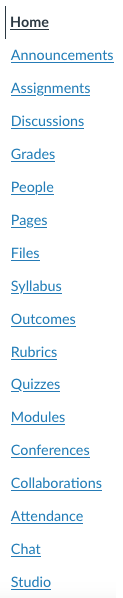
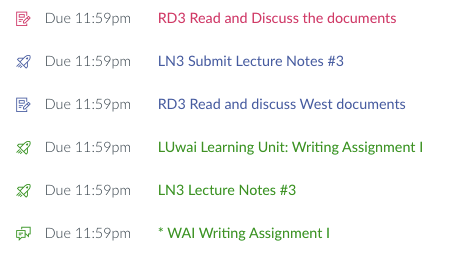


 I remember this exercise from grade school. We were given a list of terms, and told to use them in a paragraph. Not define them, but use them.


 All the books I’ve used, including works by


 We all have stories, usually told while shaking ones head, of how students do things at the last minute.


 s to things like “L1” so you can squeeze the column smaller in the gradebook.


 , and has been implemented fiercely. I have already spoken with faculty who have been told that the materials they set up for sound pedagogical reasons will not do — they must be changed to provide students simpler, clearer pathways and simple downloadable materials. The intent is clearly to reduce the complexity of all online classes in order for them to be seen as “excellent” by OEI.
