Working against Canvas: three tips

So many instructors, some of whom have used Canvas as their LMS for their on-site classes, are now encountering the system’s complexities and limitations. Teaching fully online is different from posting ones class resources online, or at least it should be.

My advice has changed from three years ago, because Canvas itself has changed.  My reasoning, however, has not changed from eleven years ago. My article on Insidious Pedagogy: How course management systems affect teaching (2009) explained how the designs of learning management system tend to control pedagogy, especially among novice users. We need to spend some time working against the system.

So I’ve reduced my top ten tips to three. And they may well be suitable for LMSs and VLEs other than Canvas.

1) Create full navigation using Pages

As with LMSs of old, Canvas continues to default to grouping content and assignments by type. This is a holdover from Blackboard, which relied on the early computer analogies of “files and folders” to imitate paper filing systems. So “Lectures” can be a folder, “Discussions”, “Quizzes”, etc.

But for most of us, learning is time-oriented, or theme-oriented, not type-oriented. We tend to have units with multiple types of content and activities. Many of these are organized by unit or week. There is no way to express this to students without making a page of links.

Canvas, of course, has a Modules page with a list of links. On the Modules page, you can load in everything, and have students do things in sequence, or with prerequisites, or both. The Modules page is, and has always been, ugly. The most you can do is add emojis to the headings, if you know how. And every item listed on the Modules page is the same size and color, creating the impression that everything listed has the same worth. All you can do is indent, or use caps.

The best Canvas classes I’ve seen have a schedule or grid on the main page:

Each of the links goes to a Canvas page, which has links of the activities and content:

One can of course put all these in the Modules page also, which will enable the “Back” and “Next” buttons for those into sequences and control. Then it’s up to you whether to show that Modules page, because you also ought to. . .

2) Hide menu items

This has not changed from earlier advice: features we are not using, or that we don’t want students accessing from the menu, should not appear on the menu.

For Canvas, this involves going to Settings – Navigation and dragging the items you don’t want visible down to the inactive area. It used to be that when you did this and saved, neither you nor the students saw these items on the menu, and the look was clean. Recently, Canvas changed this so that the instructor sees them all, but with the hidden items indicated by a crossed-out eye.

Well, at least students don’t see them.

3) Do low-stakes stuff anyway

Here working against Canvas means working with it. Students need reasons to work on your class, and to get immediate feedback. This is difficult in Canvas. Doing extra credit, creating short quizzes, using test question banks, all are ridiculously complicated. And there is still no easy way to just copy a quiz.

Canvas will also passively prevent what you want to do. Want to create a discussion forum where everyone who posts twice gets 3 points? Can’t do it. Want to have 20 questions on a 10-point quiz, so each question is worth half a point? No can do. Want to rename an assignment and have all the internal links still work? Good luck. Want to change all 28 due dates to a week later? It’s a one-at-a-time job. (At least there’s a hack for this one.)

It pays to spend some time seeing what can be done with zero-point assignments, and complete/incomplete grades, and the default grade feature in the Gradebook. Students learn from short, formative assessments.

Working against the LMS has always been required for us to teach the way we want to. More and more, I see LMS trainings covering these problems, and teaching the workarounds, which is great. Particularly when your LMS is owned by an equity firm, after going public and answering to shareholders, we can be sure that improvement is unlikely (most Canvas problems have been around since its inception). We must be willing to work against the system.


Class annotation of images

This is another post where I share how I did something, solely so I don’t forget how to do it.

Perusall is a wonderful program for annotating documents with a whole class, and I’m currently using it for all my online classes, which are located in the horror of an LMS they call Canvas. I upload a PDF, and students and I can highlight the document, with a panel popping up for discussion. When anyone clicks on the question mark, it indicates a request for responses. When anyone uses @Someone, it notifies them someone has responded. I have used it to solve the “what if they don’t do the reading?” problem, since we all kind of do the reading together.

All this is great. The system “auto-grades” (though I have to set it then check it very carefully), and pushes the grades to Canvas gradebook on my command, so I can focus on the discussion itself instead of evaluating it.

But you can’t do this with images — just upload and everyone talk about it.

Except…you can. Perusall won’t upload images natively, nor link to images directly on the web. So I downloaded an image, and saved it as a pdf in Preview, then uploaded it. Then I clicked on a section of the picture. Instead of highlighting text, Perusall put a pin. I can then ask a question or make a comment about just that portion of the image. Click the pin, and the conversation panel opens.

But the interface itself takes up a lot of the screen, which we don’t want for images. So I’m going to show students what to do about that:

If they do it, then it will look like this:

More room for the image, less clutter. I’m thinking it would be possible to put several images on a page to be discussed for that week.

What it’s doing is similar to ThingLink, which I learned about from our wonderful art historians over a decade ago. But ThingLink and similar programs, although they can be embedded into Canvas with iframes, cannot track a student’s comments, nor auto-grade them. Perusall can, which shortens my workflow so I can focus on the discussion, just as I do with annotated text.

So, annotations for images when I teach a European history course that focuses on the Humanities, and a History of Technology class that can get bogged down in text? I’m in!


The placement of things

Where’s my stuff?

The placement of things is important. As with medieval manuscripts, what is not stored properly is essentially lost to all humanity. After 20 years working online, I here report on where I keep things at present.

Public ok or intended: Google

My syllabuses are on Google Docs anyone can view, department business and drafts are Docs for others to share and edit, student surveys are in Google Forms. My slide presentations for class are Google Slides (it’s a damn shame you can’t do music easily on the slideshows – they really are letting it, um, slide). My talking head videos are on YouTube with captions.

MiraCosta College only: Canvas

As all our college’s instructors move to the Canvas LMS (more’s the pity), this becomes the default. Of course, once everyone has 143 course cards showing on their main screen, scroll weariness is bound to set in and many won’t be accessed. The extremely limited discussion functionality of the system will also discourage open discussion (as will the fact that admins can access it on request at any time). Nevertheless, campus projects as well as courses are popping up like so many daisies. I remember this happening with Blackboard. The college has a server where I kept my home page, but they declared these are being deleted due to security issues (which my pages didn’t have, BTW).

The only LTI I use in Canvas consistently is Perusall, where I have uploaded the primary sources for students to read and discuss. Hypothes.is is always on the back burner, as I wait for automatic group logins and an easier interface.

Stuff I want to control: Reclaim

My shared hosted account at Reclaim Hosting is where I am moving (or have moved) everything which I want control, including privacy settings. This blog is there.

It also serves my zillions of web pages that make up my class content (lectures, information pages, etc.) which I embed or link to from Canvas. I have left Dropbox and use Owncloud via the Reclaim server installation; I have left Netvibes and use TinyTinyRSS via the Reclaim server. I am still seeking a substitute for Diigo (which will import it as well).

Mail: Various + Gmail aggregation

MiraCosta has its own mail server, which uses Outlook, a system I find needlessly cumbersome and relatively feature-free. I POP that into Gmail — it’s only inconvenient when people use the Outlook groups. I have two Gmail accounts, one personal and one professional, inside Google, so that’s obviously Gmail. My main personal email is run from Reclaim with my domain, and IMAP’d into Gmail. All mail comes in with tags so I know what’s what. I also back up my Gmail to Apple Mail (which I don’t otherwise use).

Research

After much flailing around, it’s Zotero for gathering resources and bibliographical entries, and (at last) Scrivener for drafting. Manual backups to hard drives. Diigo still for gathering web resources (I’m still working on that – any suggestions for self-hosted?).

Things That Mustn’t Get Lost

Everything crucial is on hard drives: one for work, one for household, one for work media files, one that backs up the others. Dreamweaver to ftp back and forth to the Reclaim servers.

Bric a brac around the web

I’ve had more services close down on me than most people ever used, which helped foster my natural cynicism about web services. I still have a Tumblr account with things I have stored, though I rarely access it – it’s like a time capsule now. I have zillions of accounts (Slideshare, Blabber, things you’ve never heard of going back to the beginning of the millennium) that won’t let me delete them.

Videos that YouTube won’t serve, or for which I want excellent quality, are on Vimeo. I have a Pinterest account I sometimes use for collecting web images, and once used for an Honors class. I have a Flickr account that won’t be used anymore as they have created limits and pricing and I’m not sure why I need it, so it’s a time capsule too. I’d rather sort out how to do galleries on this blog.

Phones and downgrading

In several areas, I have remained static while others have moved on, because some things just work: Microsoft Word and Excel, Dreamweaver. The changeover to Canvas LMS left me unlikely to jump at new shiny technologies for teaching.

Privacy issues play havoc with my calendar. For decades I carried a paper calendar, first small, then large, then small again. Now I use the Calendar on my mobile phone, which is Google and Android, so it tries to force everything into the first category: Public. I don’t want my Calendar public. After trying to make different apps and reminders work on my phone, and being encouraged by this recent NY Times article, I am about to downgrade back to paper. I carry a paper notebook anyway, after (again) trying to use my phone. For notifications, I’ll set them manually — it’s a lot easier to do that for a few things than adjust them all for the rest of the crap.

Ethical issues are a problem with Facebook, where I belong to several groups and run the Online Teaching Group. For the latter, I have people asking to join for purposes that have nothing to do with sharing online teaching problems and solutions: I get requests from highly questionable “education” organizations, people who want to advertise, people soliciting sex or money. Combine this with Facebook’s privacy problems (I stopped using it for student groups long ago), and I am encouraged to downgrade (thus the new listserv).

Since I’m sure I’ve forgotten things here, I have not solved the medieval manuscript problem. But the things I need on a daily basis are much fewer than they used to be, when I spent much of my time exploring tools on the web. Call it the downgrading of my time, if you will.

Thus my best tech winner for 2019: the MUJI double-ring A6 notebook.

Calendrically speaking

I have always been a big fan of paper calendars. But when it comes to teaching, there are many things I need to put on a calendar that are the same from semester to semester. My solution recently has been creating a spreadsheet calendar, putting in these recurring items (grade primary sources, grade Writing Assignment III, etc), then printing it out and writing in the dates.

After almost three decades working with Microsoft products, I could not figure out how to get the pages to print correctly.

Why do I need such a calendar, when the LMS has its own calendar? For the first time since Blackboard days, I will be teaching in three different systems: MiraCosta’s Canvas (two classes), MiraCosta’s Moodle (four classes), and free Canvas (one class). This is how I will transition from Moodle to Canvas over the next 18 months.

The Canvas and Moodle calendars, plus my own grading calendar, would need to be in the same place to do this electronically. So today I used the URL from the Canvas and Moodle calendars, and put them into Google’s calendar, then added my grading tasks.

Both LMSs, unfortunately, export the full calendar (all classes), not each class – this is a problem because Google imports them all as one calendar, with all tasks in the same color regardless of which class it is. I wanted a separate Google calendar for each class. Luckily, I was able to solve this for Canvas by exporting each course’s calendar from Student View, as recommended by Chris Long in the Canvas Community. There is no way to do this for Moodle, but it didn’t matter, because both sections are of the same class and on the same calendar.

Now I have all tasks in one place, accessible on my phone or on computer.

I’ve never not used a paper calendar of some kind (yes, I know, call me steampunky), so we’ll see how it goes.

Canvas But Cool: Embedding Announcements

I hope to start a series of posts here on things I’m doing in Canvas, but that are cool anyway. Some will be workarounds, some ideas for making things look better, some techniques born out of utter frustration.

None will be as brilliant as what Laura Gibbs is doing at the University of Oklahoma  – she’s got LOL Cats rotating through her Canvas pages using a cool javascript. But her work inspires me and encourages me to find things that are Canvas…But Cool.

My first concerns Announcements. In Moodle (many of my posts will start “In Moodle”, an approach dreaded by many in the Canvas Community) I could just paste Announcements in at the top of the main page, and copy or adapt them into Latest News for instant emailing to all. In Canvas, the Announcements page is decidedly a separate thing. If I don’t want announcements to be the main Home page, they won’t be obvious except by email or other notifications.

But I don’t want to post twice, once in Announcements and once by editing the Home Page. I want the Announcements to dynamically appear on the Home page, where I want them to. So I followed the wonderful instructions posted halfway down this page at the Canvas Community (I’d love to link directly to the post, but you can’t do that there), posted by Sharmaine Regisford with thanks to others.

Instructions:

1. First, post an Announcement in your class (I just did a welcome message).

2. Grab the feed URL for the announcements by going to the Announcements page and right-clicking on the RSS symbol (it won’t be there if you didn’t post a first Announcement).

The URL should end with .atom.

3. Go to FeedWind at http://feed.mikle.com.

4. In the spot, paste in the feed URL.

5. Choose your settings. I like 1 feed height, scrollbar on, autoscroll off, text-only, max length 132 characters.

6. Grab the regular code from the right side, not the iframe code.

7. Start a new text document on your computer and paste the code.

8. Save the file as .html.  

9. Go to Canvas and open Files. Upload the .html file you just created to your Canvas course files. Once it’s there, mouse over the name of it to find the document number – write it down somewhere.

10. Go to the page where you want the Announcements to appear. Switch to HTML editor.

11. Paste this in:

/courses/#######/files/#########/download

In this example the first ####### is your course number and the second ######### is the file number.

The course number is in the URL of your Canvas course:

So for this example, that would be:

/courses/6660/files/57294/download

The result is an iframe on your page that will always show the most recent announcement (so long as you chose that on the settings at FeedWind).

Update: As of this week, Canvas provides the option to add announcements to the top of your home page. Not as pretty, but it works:

Fun with YouTube: the pure embed

I like using YouTube clips for my classes, but I don’t like the clutter: links to other videos when it’s done playing, the title showing at the top, low quality. So I play with the embed code:

//www.youtube-nocookie.com/embed/yodnppdZh2M?rel=0&vq=hd720&showinfo=0

See what I’ve added after the video code, ending with the ?
rel=0 > YouTube adds this when you deselect the “show related videos” on the embed code

vq=hd720 > means to show it in maximum resolution or HQ if it has it

showinfo=0 > to get rid of the title showing at the top of the clip

That’s better.

Adventures in Accessibility: Part I

Yes, it’s a pain. Yes, it stifles our creativity. No, it doesn’t make sense to pretend that we can make every online learning artifact accessible to everyone with any type of disability, be it physical, cognitive, emotional, socio-economic, or educational. But we do it anyway. Not because we believe in the dogmatic, administrative, litigation-phobic approaches of universal design, but because it’s cool to do it, when we can.

So I’m taking a closer look at some of my multimedia, to see what can be made more accessible to people with certain types of issues, or, better, to be made more interesting and comprehensible to all students.

The first discovery: YouTube’s captioning is so much better than it used to be! Log in. Upload your video. Wait overnight (or sometimes just a few hours). You can even set the video to private. YouTube will create captions as best it can. Select the cc button, and see the captions in a sidebar. Click edit and edit them. You can set the video to stop running when you type.

Oh, you say you have a transcript? Perfect. Just upload your video and select the option to transcribe instead. Paste in the transcript. YouTube will set up the timings as best it can.

youtubecaptions

Sliders are now available to move the caption around on the clip. You can even see the audio waveform below to help. You can insert caption bits. Then save.

But wait, it gets better. Don’t like YouTube? Want to serve your video elsewhere. Download the captions using the actions menu (.srt format is pretty standard). Then you can upload it somewhere like Vimeo or Dailymotion, which has better video quality and no ads.

BYO OER

I struggle with textbooks, yet I need a form of context that students understand intuitively. In my rejection of traditional texts, I have been exploring both the new online pathways-though-text offered by publishers like Cengage and Pearson. My experiment with Pearson went badly, and reminded me that the answer is still open resources, free if possible.

Right now all my classes have these elements:

  • Textbook or context reading, sometimes with quiz questions (about 15% of student time)
  • Lectures I’ve written and recorded, with quiz questions I wrote (about 20% of student time)
  • Primary sources inside those lecture, and that used to be in my printed workbook (about 10% if they read them)
  • Constructivist primary source collection creation and writing (about 40%)
  • Writing on those collected primary sources (about 15%)

The main challenge is how to balance the textbook reading, and any accountability via quizzes, with the rest of the workload, particularly the primary sources inside the lecture.

US History II

Open Education Resources include history textbooks, but there are very few. OpenStax_US-History_700x906After much searching, I have discovered one I like for US History II, even though it is left-leaning (a whole chapter on the New Deal? really?) and needs some reorganizing. Unlike most of the OER history texts, it has review questions, is written and peer-reviewed by historians, and comes out of a respected university (Rice). It even looks like a textbook. OpenStax’s system allows a somewhat cumbersome but handy way to reorganized the sections and chapters. I can even rename them. After about 24 hours, it creates a solid PDF version of the book, with a table of contents, repaging and automatic transferring of questions and terms to the appropriate section. While it will take time to extract the questions for quizzes, I think it’s worth it given the quality of the text. I will likely lose the focus on the primary sources inside the lecture – the textbook is too large. But since my US students tend to be at a lower level than my other classes, they likely need both the security of an ordinary-looking textbook and the information it provides. I am testing chapters this semester in all three online sections, even without quiz questions.

But US is it. There are no similar quality resources available for Western Civ, World History, History of England, or History of Technology (my new class!).

History of Technology
BookCreatorSo for Western Civ I tried to create a book from Wikpedia articles, using Wikipedia’s Book Creator. This has not gone well. Wikipedia is for the most part fine from a factual perspective for common areas of history, but some sections are written in too much detail by total fanatics of that particular era or subject. I have spend many hours trying to make it work. For History of Technology, however, I might just need a basic Western Civ overview as background – all else would be articles and primary sources, in addition to lectures. I have created a book from a single overview article. I can add my own stuff with PDF using Preview, perhaps, or just have it online.

Western Civ

103bookFrustrated with the Wikipedia book, I began copying Wikipedia text of the sections I liked into a Word document, and editing. For Western Civ I, I have finished. I have a complete textbook of Wikipedia text edited carefully by me, with main terms in bold, the primary source documents from within the lecture included at the end of every chapter, and quiz questions I wrote from the resulting book. I am using it for the first time this semester in both the online and on-site sections of the class.

It will take time, but it looks like I’ll be doing the same for Western Civ II.

History of England

It is the only class with a published item students much purchase. I wrote my own quiz questions out of it. When they stop publishing The Penguin Illustrated History of England and Ireland, I’m in trouble.

Conclusions

I have had to take open resources in hand myself – I have found nothing that can be adopted wholesale, like a traditional texts. But traditional texts have their own problems, of coverage, rigidity, poor supplements, bad quiz questions, etc. And history texts are costing over $100 now, which wouldn’t be so bad except they aren’t good enough for that kind of money. And my own texts I can edit, re-edit – they can evolve over time at no cost to the student except for printing if they’d like to print.

I’d like to share all this. The Wikipedia books aren’t mine – I’ve done the editing but only written some of the text, and adding documents I have been using for years, most of which have passed copyright clearance on more than one occasion when custom published in previous book efforts. If I do construct quiz banks out of the OpenStax chapters, I’d like them to be available for others to use (my created book already is, inside the OpenStax CNX system). OER should be, well, O.

But it looks like it’s not enough to do OER. Looks like you have to create Build-Your-Own OER.

Embed is the new Save As

As you know, I’ve been mourning the disappearance of two key technologies: the slidecast function in Slideshare (which could sync an audio file to a slidestack) and the annotation function in Flickr (which enabled mouseover notes on an image).

Then Alan Levine posted that he’d found a slidecast working in an embedded version.

AlanSlideshare

At first I had trouble finding a Slidecast I’d embedded somewhere. Then I looked at some of my slideshows in Slideshare and peered at the truncated URLs of where they’d been embedded. Most were in other people’s LMSs (kind of ironic, actually) but some referred back to sites I control.

slideshareembeds

lisamlane.blogspot? I have a Blogspot blog? So I typed http://lisamlane.blogspot.com into my browser, and … oh!  I didn’t find my slidecast, but I did find my annotated Flickr image of a medieval manor.

Imagine my excitement! No, wait, imagine me up several late nights for hours with Dreamweaver and 33 tabs open trying desperately to figure out how to create hotspots and make an imitation of my annotated Flicker image of a medieval manor, when I didn’t keep a copy of my notes. NOW imagine my excitement!

So I posted and Alan, being his wonderful self, figured out that Mbedr was doing the heavy lifting, and he posted about his found treasures. (Mbedr is a utility I discovered and played with in 2010, thanks to – guess who – Alan – and yes, that image still has its notes too!) And because Alan had talked about View Source in another tweet about Slideshare, I viewed the source and found my notes in the code, so I can recreate the image at 2 in the morning once I figure out the hotspots. I have my text!

notesembed

Then I remembered that I had embedded a whole class of history lecture slidecasts, one at a time, onto web pages, so I could couple them with their audio transcriptions. Sixteen lectures saved!

So embedding preserved our goodies. When Flickr combined the image and the notes, and when a slidecast got embedded in a blog or page, it created something more permanent. It doesn’t solve all our problems, of course – we still can’t get these artifacts out in their original form. But access to anything we embedded seems to be restored!


Following those comments

Since the demise of CoComment and co.mments, it’s been as difficult as it used to be to follow comments on blogs.

Fact is, if people don’t put a subscribe or email followup button on their blog, it’s impossible.

The only solution I’ve found, especially for the POT Cert Class where we have many blogs and lots of commenting, is to make a Google Reader feed bundle out of the comment feeds.

Each WordPress and Blogger blog has a separate feed for all the comments. You can find them by adding “/comments/feed” to a WordPress.org or Edublog URL, or “/?feed=comments-rss2” to a WordPress.com URL, or “/feeds/comments/default/” to a Blogger URL.

It wasn’t all fun and glory. Typepad, unfortunately, only has comment feeds for individual posts, not for the whole blog. Also, these feeds pull in all comments from the blog, not just the ones related to the “potcert” tag (anyone know how to change that?)

I added each participants’ feed into Google Reader and made a bundle, available here.

Although I appreciate Google’s ability to do this, I don’t like reading anything as a bundle or in their Reader. I much prefer Netvibes. So I took the RSS feed from the bundle, and put it into Netvibes:

Not ideal, but at least I can see what’s up on the blogs!

Pinterest for lecture? Not so much.

I do lecture in class. (Read on when you’re done moaning. I’m not addicted to lecturing. I can stop any time I want…)

Although I have used slides many times, I do not appreciate the linearity of a slideshow. In addition to reminding me of film strips from the 1960s, slideshows force a particular order. Either that or you have to find the slide. If I’m talking about slide 2, and a student asks a question about something that will come up on slide 13, I want to bring up slide 13. Now. Not after paging through 11 slides or zooming out or changing to creator mode to find the damn thing.

Over the years, I’ve tried a few things other than slideshows. Prezi is OK, but it takes a while to create, and I can’t use a path or it messes up the whole idea. So I have to zoom out in between slides to see where I am. I like cooliris, but it requires a process where you either run it locally with local slides (that I have to carry on a thumb drive or load into a location accessible from my classroom computer) or be able to code it into your site, which is a bitch.

Last night I was playing with Pinterest as a possible way to store artworks or have students post primary sources (I am always seeking a step away from the LMS). This morning I decided to try it with my Roman Empire lecture.

The first issue was that it puts your images in by reverse order, so I had to load them all, then open a new Pinterest board, then repin them all to get the right order. No big deal, although it does imply a necessary order. But that’s OK – it’s still not a list – I can see about a dozen items without scrolling. Unfortunately, some of them came in duplicated. And when I brought up an image during my lecture, two things happened.

The first was that it didn’t fill the screen (unlike Prezi or cooliris, which open images to full screen automatically).

The second was when I was done with the slide, I had to click to get back to the board – I couldn’t just close it.

The image quality was not as good as it should have been, even when I linked to larger res images, but it was OK.

So today’s experiment was pretty much a fail. But the historian who follows me in the same classroom, Josh Lieser, pointed out that the students must like it that I do all these experiments. I hope so.

Workaround for some LMS insanity

It has been a horrible first two days of the semester. Last Thursday (!) our college connected the already poorly-designed enrollment system automatically into Moodle.

Everything has gone wrong. The courses couldn’t open till Thursday afternoon, so no trouble-shooting was really possible. The log-in links on every page linked to the old wrong log-in page, so students thought they were locked out. Then we discovered Moodle won’t log itself out so students can’t log in from another location without getting an IP warning. And now many students cannot get in at all because they are automatically being added to a Suspended Student role (for dropped students), so Moodle thinks they have two roles and will only let them in as Guest, and not them post or work on anything.

Class started yesterday, and one of the worst things that can happen in an online class is happening: the system is screwing up so badly that students are getting lost and frustrated. Several have dropped.

Desperate to help students not get horribly behind, I remembered that only the interactive stuff (quizzes and forums) have to be done inside Moodle. All my lectures, readings and presentations are linked out of the system, because I know better than to enter much into a system that might go down. The information pages for my classes are on the open web anyway. So I added links to the readings to these pages, but did it in a visual way that might help them once they can get into Moodle. Click on the image to see one live:

Workflow:

  • Go to Moodle site, change to student view, and take screenshot of first three weeks’ work.
  • Open in image program and change to Grayscale 256. Save.
  •  Change back to Color and put blue boxes around areas I can link out to, with big note at the top in the same color.
  • Save and add to page in Dreamweaver, then make Image Map hotspots for all linked areas and link out to those pages.
  • Post and email all students.

I really hope it helps.

Remaking a slideshow

For my US history class, I want a slideshow, with music and narration, of art during the 1920s, a subject textbooks cover very poorly. I’m into modernism anyway (see my new photos) and I want students to see the historical connections.

So waaaaay back in 2002, I created a slideshow to be embedded (hand-coded html, you know) into my lecture on the 1920s.


[qt:http://lisahistory.net/hist111/pw/lectures/Twenties/modernism3.mov 450 575]

I didn’t have a microphone headset in 2002, so I recorded it in the bathroom and it sounds like it. I added the music using SoundStudio, the only audio program I had and which I had paid for. Then I saved it all as a Quicktime movie, having to record several versions until I got the file size down (2.7 MB) that it could play on students’ computers. I had to use QuickTime Pro to get it right. That also cost money.

When I watch it now, it seems so old-fashioned technologically, so I remade it using PowerPoint (I could have used Libre Office) uploaded into Slideshare, with voice rerecorded into Audacity with a track for the music, then exported as mp3 and uploaded into Slideshare to make a slidecast.

[slideshare id=13944859?rel=0&w=597&h=486&fb=0&mw=0&mh=0&style=border: 1px solid #CCC; border-width: 1px 1px 0; margin-bottom: 5px;&sc=no]

So much better, I think.

I have other older things like this that are harder to duplicate; for example, I have another I made in 2005 using LiveSlideShow, which has better focus capabilities and now costs $69 (it was less then). I did upload it to Vimeo for easier embedding, which lost a smidge of quality.


[vimeo 32757183 w=650 h=431]


If it’s important for my pedagogy to do a presentation, I make one. And if it’s worth making, I should remake it as the technology gets better. Remaking this one would be tougher, but some really are worth the update.

Moving from Posterous to self-hosted WordPress

Posterous  has refused to convert my video for the last time. It was bad enough that they started “Spaces” (adding extra clicks and not working in Firefox anymore), then they got bought by Twitter. But the whole point of my ds106 blog is posting my own audio and video creations, so this is the last straw.

I read at Lifehacker that the self-hosted WordPress plugin Posterous Importer didn’t work , but they’ve fixed it and it does, very well.

So to do this, I created a database on my hosted server and installed (another) WP blog from WordPress.org. Then I followed the 5 minute install instructions. Then I made a mistake.

At this point, what I needed to do was create a plain text file called php.ini that had the settings I want so I can upload big media:

[PHP]
 max_execution_time = 300
 max_input_time = 600
 memory_limit = 60M
 upload_max_filesize = 200M
 post_max_size = 32M

Then I needed to upload this into the wp-admin folder before I imported my Posterous.

Next step was to get the plugin Posterous Importer and activate it, then give it the information to download my blog. It worked very well  (except that it linked back to Posterous for the files that were too big because I didn’t do the php.ini file first!).

Because I’m using Quicktime files, I also needed to get the QuickTime Embed plugin  and use its shortcode to create a player for the files I uploaded, so I did have to clean up a few posts, but overall this is going great.

Making a FAQ

Our assignment for this week at Pedagogy First! is to make a short FAQ. Mine is huge.

But the question that’s come up a couple of times now, at least for those who aren’t experienced at HTML, is how to get that cool effect where a student clicks on a linked Q at the top, and the cursor bounces to the corresponding A at the bottom. This is called an internal link or an anchored link.

Here’s how to create those links in a FAQ using OpenOffice. This can then be copied and pasted into a blog post or Dreamweaver.

http://www.screenr.com/embed/SFT8

Embedding in WordPress.com and Edublogs

When the Program for Online Teaching Certificate Class began over at Pedagogy First!, we asked everyone to start a blog for posting their weekly assignments. Not wanting to cost anyone anything, we recommended Edublogs and WordPress.com. We got together a big syllabus of assignments, and thought we were off and running.

Oooops. Some of the things we were asking people to do wouldn’t work, even though we tried to be helpful with the how-to. These were things that were second nature to those of us running our own blogs on our own servers, like embedding video, audio and slideshows. We’re used to full access to a myriad of plug-ins for doing fun things. But these just aren’t available on the free services, and we didn’t know.

It’s audio, video and screencast time, and some people can’t embed to show us their stuff.

So I’m researching workarounds.

For WordPress.com

Here’s one for using Vodpod to embed Flickr, by Gavin Wray. I tried it and here’s the result. It worked, but I did it differently.

http://www.screenr.com/embed/83ys” />http://www.screenr.com/embed/83ys” allowFullScreen=”true” wmode=”opaque” AllowScriptAccess=”always” allowscriptaccess=”always” allowfullscreen=”true” pluginspage=”http://www.macromedia.com/go/getflashplayer” />

So I went to all this trouble, only to find that Flickr slideshows (and YouTube and Vimeo) embed just fine anyway, just by putting their URL on a separate line in a post!

Vodpod as workaround

So I tried things that can’t be embedded that simple way. Vodpod was the answer to two issues:

1) Slideshare, a slidecast with music. Vodpod said it wouldn’t accept the embed code from that site. So I just put in the URL. And it worked.

2) Jing. I used the URL http://www.screencast.com/t/gL1VF7SS2 and no problem. (It wouldn’t work with a Quicktime upload I put in Screencast, but it worked fine with a standard Jing in the Flash format.)

(Vodpod kept saying it was uploading to Facebook instead. But I told it WordPress, and it can’t load to Facebook because it doesn’t have my account.)

For Edublogs

In Edublogs, this Vodpod trick doesn’t work. You get an error code in Vodpod saying you need XML-RPC services, which you can’t enable without Edublogs Pro. That makes Slideshare and Jing a problem for Edublogs. Know any workarounds?

Some interesting places to meet in real time

We’ve been working at finding places for synchronous meetings of various kinds for the POT Certificate Class. Sure, we can do the usual things, like meet up in Collaborate/Elluminate (we have installations at several of our jobs), but we kinda like free and we kinda like different so lately we’ve been looking at:

Web conferencing or video/audio conversation

Google Plus hangouts

The advantage is that many people already are in Google for something, and it’s pretty easy to find Plus now, and everyone can now access it since it’s out of alpha stage. Great video and audio quality, and the camera can automatically shift to whoever is speaking, putting them in the main frame.  But the maximum is 10 for talking – anyone after 10 can only watch. We liked it especially for quick meetings, kind of like Google Talk with video. One interesting thing is that if it’s public, anyone may drop by. The “with extras” option slows down the system, but lets you add viewing a YouTube together (this didn’t always work) or embedding a collaborative Google Doc, which would make presentations possible.

Big Marker

Kind of like Collaborate Lite, this one let us be on camera with microphones, but we had to have headsets upon entering the room or we got awful audio feedback. We only had four cameras on at once, but quality was good. All panels (participants, individual cameras, whiteboard) were in separate frames that could be resized. A presentation ppt could be loaded, and the presenter could zoom in or mark on it with simple drawing tools (line, box). Only one person could present at a time, and a newly uploaded presentation replaced the old one. Sessions cannot be archived with a free account.

Facebook HOOT

We began with just Facebook group chat, which is only text chat, but then decided to try this. Hoot is an FB application that you add, and the idea is to allow students to meet up together with video and audio. We tried it with five or six people, and as we were talking the creator of the app came in and spoke with us. Spooky but cool. Created by students for students.

Second Life

Here you need a “place” in SL to meet, so it’s like Collaborate only in that sense, and there are colleges and various organizations that will let you use their space. Audio is kind of new, and the application is pretty heavy (Cris Crissman pointed me to a different viewer, called Phoenix, that worked better than the new SL viewer). Learning curve is high, but the learning experience is rich because of the simulation of an actual meeting in a simulated space. Hard to explain unless you’ve done it.

Skype group video calling

For this, one person in the group must have a Pro account.

Alternate formats for “talking” while working together

Slideshare (Zipcast)

The idea here is that the presenter schedule a session where s/he can show him/herself on video and audio while touring through a slideshare slideshow, and you can see who is attending with their icons, and they can text chat during the session. Looks like you need a Pro account to do audio conferencing.

Inside a Google Doc

We meet inside a Google Doc just by putting some text in a Doc, then making it public and letting everyone know the URL. No audio, but real time edits and chat once you open the side window, plus you can annotate. If you were logged in to Google, sometimes it would still show you in the room as Anonymous, which was annoying. The other problem is that the synchronous chat isn’t saved. But it was a great way to create a document in real time.

I’ve heard Etherpad is good for this too, but it’s been bought by Google anyway; Crocodoc is also good for annotating together.

Hall.com

We recently also tried hall.com, which sets up a room where you can do polls, to do lists, and instant message chat — it seemed to work very well.

MindMeister Brainstorming

Lets you text chat while you create a mind map together.

Qikpad

Like Google docs, but better in a way because you can change your name  from anonymous instantly, and everyone’s contributions are instantly highlighted in a different color.

Shut up and collaborate

You don’t always need to be able to see and/or hear and/or text chat with each other — sometimes you just need to work at the same time. The collaborative documents can do this, and so can:

Stroome

Video collaboration, but we haven’t tried it in real time, though it says it can. 500 MB free. Lets you add clips, transitions, do cuts, etc. A little slow in rendering. Another recent option is wevideo, which we’ll try also, although it only lets 5 people work on one project in its free version.

Prezi Meeting

We haven’t yet tried it, but you can meet in Prezi to collaborate on making a presentation. Icons represent each participant, and move around showing who’s editing what.

 Watch a video together

Not quite ready for prime time, or at least not any better than putting a link in a chat and telling people to go watch.

We tried YouTube itself, which now has a link in the Share options that sets up a Google hangout for watching — we have tried to watch videos together in Google Hangout and it doesn’t usually work. We often all get bounced to a generic YouTube page instead of whatever the participant is trying to load in.

We also tried Chill.com (you have to use Facebook for this), and Synchtube, which didn’t really. We were all able to watch the same video, but speed varied widely. One of our members called it “Asynchtube”. Watchittoo.com made you pay.


Your question: where and when are you guys testing all this? more in the next post!

My question: What else should we check out?


Class design: is One Blog the middle ground?

I have now been a student in three separate classes where I ran my own blog to do the class assignments (CCK08, EC&I831 and ds106).  My classes for students are all designed with an LMS-based forum, within which outcomes have been achieved well thus far (I implemented the basic format in 2009).

So now, as I consider departing from an LMS for at least one of my classes for spring, the question is: should I have each student create his/her own blog, then aggregate them, and have them comment on each others’ blogs for discussion? That’s been the model in all three classes I’ve taken, and is the model for Pedagogy First!, where we’ve been using 90 individual blogs for the POT Certificate Class, aggregated to one central website.

But is this the best way for my own classes?

In a more typical online class, discussion takes place in a forum. This keeps things focused and in one place. People are used to forums. All the classes I’ve seen with distributed activities instead of forums have students begging for a forum, whether it’s a threaded forum in an LMS, a Google group, or a Ning. People want a central place to talk, and an aggregated blog made of up all their disparate posts can become just an information center, not a coffee house.

My brilliant colleague Jim Sullivan teaches English composition using a class blog. Students are all authors on it, and they blog there, not on their own blogs. We’ve discussed this many times, and I’ve rejected it because students don’t control their own space. I think they should, but I’m aware that the idea of helping hundreds of students with their technical problems has been a major hurdle to moving ahead. Now it occurs to me that Jim’s approach may be the pedagogically middle ground rather than just easier and more convenient for me (I like pedagogical middle grounds).

A traditional forum in an LMS is set in its pattern and closed in its format (once the class is over, you usually can’t access it). Having everyone create their own blog lets students have their own permanent space, but really doesn’t encourage discussion (as I’ve discovered running Pedagogy First!). Is the One Blog approach the middle ground?

Is it open and available?

It can be open and as loose as I want, and since I run my own WordPress I can promise it will stay open (Jim runs his own Typepad).

Is there a sense of student ownership?

While students don’t run their own space, students may feel that the One Blog is their space collectively, rather than individually (a classroom they can help create). This could subconsciously create a feeling of community.

Does it provide a good place for discussion?

Yes — not as much as a traditional forum, but more than individual blogs, because it is in one place and everyone is signed in just once, rather than being a guest on other people’s blogs. Plus, WordPress comments are nested. I have searched long and hard and have been unable to find forum software that is free, nests the comments so you can see which comments reply to which, and will tolerate multimedia.

Isn’t Ning a middle ground?

Ning is a social networking platform, a damned good one (nested! multimedia!), but to use it for free you have to advertise for Pearson. That isn’t middle ground — if there’s any advertising in my class at all (and I think there shouldn’t be) it should be incidental, not deliberate and appearing as if I am a spokesperson sponsoring a product (in many ways, this includes Blackboard and Moodle). And I don’t have time right now to figure out how to use an open source social networking platform (such as Oxwall) on my own service.

Although until now I’ve only used blogging for class as a student, I do use the blog platforms for my History 103 and History 104 at San Elijo. They’re not actually blogging on these (in terms of reflection or graded items), but rather posting theses for papers they turn in, and working together to create collections for class presentations. I could start by expanding this set-up into the One Blog format.

Sooooo…..

what am I not thinking of here as I make this decision?


Embedding stuff: the missing manual

We’ve had some assignments at Pedagogy First! lately where we asked people to embed stuff, but didn’t tell them how! 8-0

Sooo….Here is a YouTube video on embedding a Slideshare slidecast into Blackboard, Moodle and WordPress:

[youtube=http://www.youtube.com/watch?v=Um6qfT_gpbU&w=533&h=301]

Here is another, on embedding a Jing video from Screencast.com into Blackboard, Moodle and WordPress:

[youtube=http://www.youtube.com/watch?v=sTmJwtTBBFM&w=524&h=296]

And here is one on embedding a YouTube video (like these) into a WordPress post:

[youtube=http://www.youtube.com/watch?v=wVSMHyANdLY&w=527&h=297]

Comment feed bundle to get around the GFWC

We’ve had a problem in the POT Cert Class at Pedagogy First! One of our mentors,  Brandon Davis-Shannon, made a Google bundle for all the feeds coming in from everyone’s blogs, which is great. Plus he posted for everyone on how to use them.

It turns out that edublogs is blocked in China, so our participants there can only read the posts either through Pedagogy First! which is aggregated, or Brandon’s bundle. But they can’t read the comments (or post any) so they’re missing the conversation.

This morning I took Brandon’s idea and began making a bundle for comments, by going to everyone’s blog to grab the comments feed. This proved slow to do individually, and difficult because some don’t have an RSS feed for posts, much less for comments. So I began doing this (change to 480p if you actually want to see it):

[youtube=http://www.youtube.com/watch?v=6D8yNXeMTEc&w=960&h=720]

The bundle is here. But there were a couple of problems (listed to both warn people and ask for help!):

  • Posterous — I couldn’t find a comment feed for Posterous blogs (thus two blogs are missing from the list)
  • Tags and categories — while it’s not too bad to find the comments feed for all WordPress and Blogger blogs, and not too hard to find feeds for tags or categories, I could not figure out how to do both — get a feed for comments that are responses to posts only in a specific tag or category

One annotated research location to rule them all

I am currently doing some research for the EDUI 6706 class I’m taking at Cal State East Bay, and it involves finding lots of articles. I normally print these out, but that’s seeming excessively wasteful (though convenient for transport).

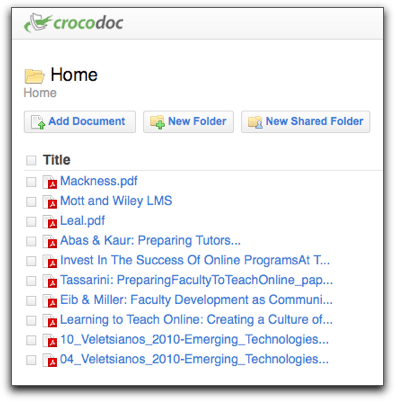
I had searched previously for a solution to stashing pdf’s with my own annotations (many articles download as pdf). I already use Diigo for stashing and annotating web pages, but it won’t do pdfs. The Google/Diigo workaround I tried in July basically sucked, and the Evernote solution was too time consuming and, frankly, inelegant. But in a comment to that Evernote post,  Ron Houtman recommended Crocodoc. (Another colleague of mine, Robert Kelley, had recommended it for annotating a document collaboratively, so somehow it had gotten in my head that’s what it was for.)

So in total desperation after looking at a stack of manually highlighted paper packets and a mishmash of conveniently annotated research bookmarks in Diigo, I tried Crocodoc. It has its own annotation system, of course, but that’s OK. Here’s what I do.

I find the article I want, and it downloads in pdf. I then upload it to Crocodoc, changing the title so I know what it is (research articles often download with helpful file names like 2892586.pdf).
Then I click on it. But instead of using Crocodoc’s annotation tools, I use my Diigolet and bookmark it. This bookmarks the crocodoc version of the pdf file. I then use Diigo’s tools to annotate.
When I’m done, the highlighted passages show up conveniently in Diigo as my annotations, where I can copy and paste into my work.

As you can see, though, the only problem is the size of the annotated text in Diigo. If you use Diigo’s annotation tool, it comes out super big. If you use Crocodoc’s tool, it comes out normal size. Crocodoc’s tool is dicier, though — it doesn’t always hold the highlight in Diigo.

But still, now all the research stuff is in one place. Huzzah!

Simulearn: running a simultaneous on-site/online connected workshop

You can do this yourself, with three people (though a tech person or two is helpful to make sure the lab stuff is working!), a couple of webcams, and a few computers. No need for fancy technology.

Two years ago, I wanted to figure out how to broadcast a Program for Online Teaching on-campus workshop and have online people participate too. My colleague Laura Paciorek was enthusiastic. Of course, we wanted to do it for free and on our own. I wanted a camera in the lab, so people online could see both the presenter and the people in the lab. At first we borrowed a flash-memory video camera from Media Services, but it was tricky to connect into the computer so we switched to a webcam.

The energy came from Laura, who took on the lab end. I became the facilitator online, in an Elluminate room. We did it a few times, with varying degrees of success, and as it became more complicated Laura felt we needed to document what we were doing, which we did here in this web page. We weren’t sure what to call what we were doing, but it was simultaneous and people were learning, so we called it Simulearn.

At about the same time, I attended an online sesson at the High Tech High School in San Marcos, and saw that they were doing the same thing, but with a camera at the back also so people could see the audience, and people on webcams at home. So we added that. Then we needed another person at the back  of the lab on that camera, so we asked for another POT volunteer to man the computer at the back of the room. (Thanks, Lyle!)

Then Laura felt that presenters needed to be more prepared for what we were doing, since they needed to be aware of the online participants, use a microphone, and answer questions arising from the chat. So Laura made an excellent tutorial:

http://content.screencast.com/users/CDProfLaura/folders/Jing/media/9bcd102e-ff3e-4906-868d-07a294527e8c/jingswfplayer.swf

Some of this record-keeping was in case Laura or I missed a session, but I continued to get confused about how we were setting it up, since I was never actually in the lab location. So yesterday I got into Gliffy and created this graphic. Laura says it’s OK.

SMOOC update (or the joys of being a WP admin)

The not-quite-a-MOOC (but rather Small to Medium-Sized Open Online Class) POT Certificate Class is underway at the new Pedagogy First! Blog. What follows are notes about technology realizing my pedagogy for this class.

What I wanted

I wanted something like Jim Groom and Martha Burtis do for DS106, a central WordPress blog that pulled in posts for the separate blogs of people participating in the class.

I wanted to adopt a mentoring system like the one Alec Couros used for EC&I831, where more experienced people could help the newbies.

I wanted it open, as Jim and Martha and Alec did, and as George Siemens and Stephen Downes and Dave Cormier do for their MOOCs (yes, that link is the unfinished Wikipedia entry, but I haven’t had time to work on it).

I wanted participants to be able to add their own blogs to the big blog.

I wanted sticky posts at the top that had the week’s instructions, since we are not using a strictly connectivist pedagogy (if there is such a thing) for the people earning a certificate. Certificate folks have weekly readings and tasks, including a blog post showing what they’ve reflected upon and created on the web.

I wanted each week to have a moderator, who would create some introductory media for that week and then follow the big conversation, just for that one week.

The content was set up as a simple syllabus page. That’s actually been the easiest part of the whole thing. It’s just a syllabus. We all know how to do that!

I wanted it not to be an administrative nightmare. (Well, as they say, ROFLMAO!)

The technology

It’s turned out to be much more difficult than I anticipated. Here are the challenges:

1. Sticky posts (Solved)
Feedwordpress at first could not do a Sticky Post properly, causing me to try other plugins designed to pull in feeds, none of which were what I wanted. This was resolved with a bug fix in the updated version of Feedwordpress that came out in July. In Atahualpa theme, it was easy to change the background color of these posts, and even add a little POT logo, so they look different.

2. Massive database and CPU usage (Partly made kind of OK)
As I set up the blog and people began adding feeds, even with only a few, the CPU usage at my hosting company (Lunarpages) was climbing. I alerted them before they alerted me, but they don’t support the scripts you use, just yell at you to fix it. I did chat support a lot trying to narrow down the problem with my limited knowledge of databases (i.e. none) and php (almost none). I failed and opened a new account at Bluehost using POT’s Excellence reward money, created the domain pedagogyfirst.org (after checking with Glenda Morgan, who first coined the phrase) and imported the WordPress files and database. Since I’m not a fan of using the phpAdmin to repair and optimize the database (I figured out this was helpful to deal with what they call “slow queries”) I’ve had to use an optimizing plug-in that I manually click on if I want it to clean stuff up more than once a day (and I do).

3. Feedwordpress weirdnesses (OK)

Author names come through as usernames rather than a real name. Since people don’t sign their posts, I’ve changed these so long as I can see that they want their real names used (if they mentioned their real name on their blog).

The first post on WP (“Hello World” with no real content) comes through as the first post in syndication, so if they didn’t change it, it posts the default first post. I am removing these manually.

Jim and Martha had to remind me that when you delete syndications (like with spam), it only makes them inactive. You have to then go to the inactive ones and really delete them. Interestingly, Chrome will immediately not show them even though they’re still there, so you think they’re gone when they’re not. Firefox and Safari will show the undeleted feeds.

Also, if using a Cache (recommended) plug in (I used Quick Cache), be sure to clear it when you make changes. Some browsers will continue to show the old post or page.

And strange things happened, but even with manually refreshing all the feeds, they wouldn’t correct themselves for hours.

4. WordPress things (OK).

When using iframe on a page, you must create a template just for that page. I also used Custom Menu, which meant remembering to add the page to the menu also.

The Atahualpa theme is wonderful, but some of its settings get overridden by Feedwordpress, and it’s hard to tell which ones.

I removed the admin account for security purposes. (I learned this while flailing around trying to decrease CPU usage.)

5. People adding their own blogs (sort of OK)

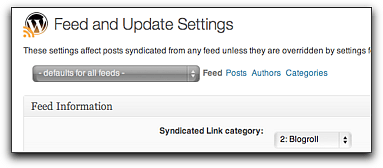
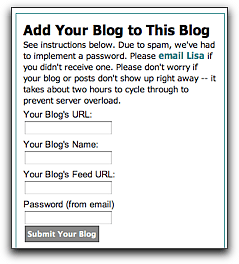
I used the “Add Link” widget plugin, which lets people put their blog onto the Blogroll. Then I set Feedwordpress to syndicate posts from the Blogroll. First, I got some spam blogs, so I had to implement a password. Also, Feedwordpress needs the URL of the blog’s feed, not just the blog’s URL. People put in the wrong feed or a whole other URL. I had to change these manually for each blog. Since most newbies are using Edublogs, the feed URL usually just ends in “feed”.

I also gave instructions for adding only posts that had the class tag (“potcert11”) into the blog URL, but people didn’t always know how to do that. The idea was that if someone already had a blog, instead of adding the feed from the entire thing, they could just add the tag’s feed (for Edublogs or WordPress.com, this is something like http://example.com/?feed=rss2&tag=potcert11. For Blogger, it’s something like http://blogname.blogspot.com/feeds/posts/default/-/potcert11. When folks didn’t understand, I had to try to do this manually to prevent the entire blog filling up with unrelated stuff.

6. The prompts (well, I hope it’s OK now)

The sticky posts, once they were working, appeared to be simple. Just add in the instructions (written by Jim Sullivan, our Blog Meister, who’s wonderfully encouraging). But each post will also have media, and all the  moderators are creating their stuff in different applications — Voicethread, Jing, Camtasia, YouTube. This is what we want, of course! But embed codes didn’t always work. I’d have to add a plug-in, or change the size on a video to prevent it overlapping the sidebars. Lots more work than anticipated.

The Participants

I asked everyone to email me to be “registered”. I kept all their information on a Google Doc spreadsheet. I added their name, where they were from, what they taught or studied, then their blog URL and feed URL, and whether they were interested in Mentoring.

But I also asked them to sign themselves in to a public Doc that appeared on a blog page as an iframe. I used a Google Form for them to enter their info, setting it to show the resulting spreadsheet after they had done so. This way they could know who else was in the class, I could find out how they came to know about the class, etc.

Some people aren’t comfortable being “known” on the internet, so I had a provision for the certificate that they could use a pseudonym. It’s hard to assign a mentor to a pseudonym.

The Moderators and Mentors

Several wonderful people agreed to be moderators and mentors, proof of the old adage that you just have to ask.

Moderators introduce a unit and supervise for a week. I called on POT leaders, certificate holders, and facilitators to take a week and moderate it, making a video tutorial or something to inspire and preview that week (an idea of one of our new people, Eric Robertson). Everyone is doing great work with this, and I look forward to each of them “taking charge” during the week they’ve chosen.

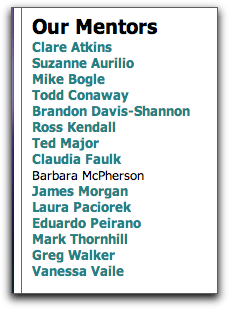
Mentors help individual participants, with a focus on community so no one is sitting there with no comments on the blog. When I saw an obviously accomplished blog post or experienced distance educator add the class, I asked if they’d be a mentor, plus we have people who already earned a certificate last year and are paying it back. As the class registration rose above 50, I decided to follow Alec Couros’ lead and assign mentors to particular participants, so I just added a column to the Doc then gave the mentors edit access to it. Right now each mentor has 4-6 people assigned to him/her.

The Insanity

At one point in my panic, Alec Couros advised me not to abandon my pedagogy. I thank him for that. Others advised me to bail on it and use an LMS (the horror!) or a Google Reader bundle, which is certainly my backup if all this fails and the database crashes or my new host sends me threatening emails. Some people think it’s too open, and they don’t want to blog. Others think this isn’t open enough, and want it to be a connectivist MOOCy thing with internet diffusion and intergalactic social network connections. (If I let this kind of stuff get to me, I’d have given up teaching undergraduates a long time ago!)

It is possible, however, that there is a much easier way to accomplish some of this. I stumbled recently upon a post by Jim Groom, who used WPMU and another plug in to create a Feed to Rule All Feeds by just pulling in any post on the web that had a particular tag. This would be good (no 77 separate feeds, latecomers can play along much more easily) and possibly bad (lots of spam postings, dependence on yet another plug-in to pull them in). I am still trying to decide whether to try it now, but I think it might be better next year. Then we could go even more open and diverse, which would be good.

For now, tracking 77+ people and trying to prevent Pedagogy First! from crashing will be quite enough.

Now what?

The class actually starts tomorrow.

What will we do with those who want to add late? I can allow a few exceptions (I already have, since the registration deadline was August 26). But the way the feeds are done there isn’t much mechanism for just jumping in on the big blog.

People can jump in, though, in a number of places: the POT Facebook group (already very active), a Diigo group, the POT YouTube channel, Twitter (hashtag #potcert11) etc. And we have several mentors already who will be taking the lead in doing synchronous sessions, Google Groups, and goodness knows what other Distributed Activities.

I’m confident that the pedagogical model is sound, and the set-up is sustainable and rich. I mean the people-to-people set-up. We’ll have to see about the technology. 😉

Glogster & Moodle: good idea, poor execution

For extra credit in my online classes, I usually have students make a slideshow detailing a historical theme they’ve created.

Don’t tell, shhhhh, but: I despise slideshows. They take too long to grade, because they are hard to skim. Worse than audio.

All on one page, that’s my ticket.

So students in my 8-week summer Western Civ class asked for some extra credit, and one mentioned a poster (he also mentioned slideshow, but I’m ignoring that). So I went to Glogster, which I’ve never used for any sort of assignment, and created one as an example.

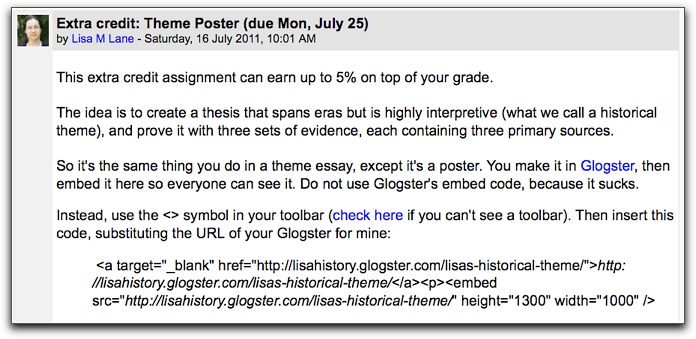
Then came the embed horror. Since speed is my goal, I want these suckers embedded firmly in a simple forum post, so they’re all one one screen and can be marked easily with a ratings drop-down.

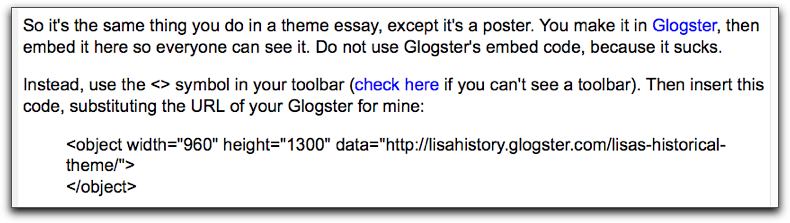
Well, Glogster’s embed code sucks, and Moodle’s forum helpfully strips it to completely useless. And if you used Glogster’s “embed this poster” embed code instead (which is iframes-based), Moodle’s forum strips it all. So I tried to include special instructions as part of the extra credit assignment itself:

Then I looked at my cleverly embeded poster, and it wasn’t there. My own Firefox said I needed a plugin, but my Shockwave Flash is up to date. I looked and Safari sees the embed just fine. Naturally, I was contacted by a student almost instantly saying they couldn’t see the sample poster. I worked on it all morning, and finally had to use this Moodle hack, which creates a database. Took about a dozen tries but now students should be able to do this:

Of course, in WordPress this isn’t an issue.

http://www.glogster.com/flash/flash_loader.swf?ver=1309172180